A cron job takes five minutes to set up and five years to stop getting wrong. The syntax fits on an index card. The daemon has barely changed since the 1980s. And yet, every ops team we've talked to has at least one story about a cron job that failed silently for weeks: a backup that stopped running after a server migration, a report that broke when DST shifted the clock, and usually a few more they'd rather not talk about.
This guide covers the full lifecycle: how cron works, how to write and manage cron jobs, where they break in production, and how to know when they stop running. If you already know the basics and just need syntax, our cron expression cheat sheet is faster. For a quick definition, see the glossary entry.
What a cron job actually is
A cron job is a command that runs automatically on a schedule. The name comes from "chronos" (Greek for time), and the tool itself dates back to Unix Version 7 in 1979. Ken Thompson wrote the original; Paul Vixie rewrote it in 1987 into the version most Linux distributions still ship today.
The moving parts are simple. A background process called the cron daemon (crond or cron) wakes up every minute, reads a list of scheduled commands from crontab files, and runs anything that's due. That's it. No queue, no retry logic, no notifications. If the command fails (returns a non-zero exit code), cron doesn't care. If the server was off when the job was due, it doesn't catch up. This simplicity is both the strength and the biggest operational risk.
How the cron daemon works under the hood
Every minute, the cron daemon checks two places.
Each user gets their own crontab, edited with crontab -e and stored in /var/spool/cron/crontabs/ (Debian/Ubuntu) or /var/spool/cron/ (RHEL/CentOS). Jobs run as the user who owns the file.
System-level crontabs live in /etc/crontab and /etc/cron.d/, and include an extra field for the username. The directories /etc/cron.daily/, /etc/cron.hourly/, /etc/cron.weekly/, and /etc/cron.monthly/ hold scripts that anacron or run-parts executes on a fixed schedule.
One detail that catches people: cron doesn't load your shell configuration files (.bashrc, .profile, .zshrc). It runs with a minimal environment, usually just HOME, LOGNAME, SHELL=/bin/sh, and a stripped-down PATH. A script that works perfectly in your terminal can fail in cron because /usr/local/bin isn't in cron's PATH. We'll come back to this in the pitfalls section.
Crontab syntax: the five fields that control your schedule
Every cron job is one line: five time fields, then the command.
┌───────────── minute (0-59)
│ ┌───────────── hour (0-23)
│ │ ┌───────────── day of month (1-31)
│ │ │ ┌───────────── month (1-12)
│ │ │ │ ┌───────────── day of week (0-7, 0 and 7 = Sunday)
│ │ │ │ │
* * * * * command to run
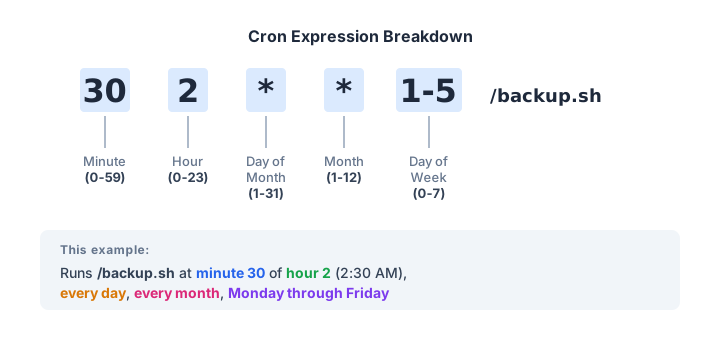
Four operators give you most of the flexibility you need:
*matches every value in the field.*/Nis a step:*/15in the minute field means 0, 15, 30, 45.N,Mpicks specific values.1,15in the day-of-month field means the 1st and 15th.N-Mdefines a range.9-17in the hour field means 9 AM through 5 PM.
Combine them: */10 9-17 * * 1-5 runs every 10 minutes during business hours on weekdays. You can build and test expressions interactively if you want to experiment before committing to your crontab.
One gotcha with step values: */7 in the minute field produces 0, 7, 14, 21, 28, 35, 42, 49, 56, then a 4-minute gap before 0 again. Steps that don't divide 60 evenly create uneven intervals. Stick with 1, 2, 3, 4, 5, 6, 10, 12, 15, 20, 30.
Set up your first cron job
Open the crontab editor:
crontab -eIf it's your first time, the system will ask which editor to use. Pick whatever you're comfortable with. Nano if you're unsure.
Add a line. This one runs a backup script every day at 2 AM:
0 2 * * * /usr/bin/bash /home/deploy/scripts/backup.sh >> /var/log/backup.log 2>&1Save and exit. Cron picks up the change immediately, no restart needed. Verify it was saved:
crontab -lThree things to notice in that backup entry:
- Absolute paths everywhere:
/usr/bin/bash, not justbash. We explain why in the pitfalls section, but the short version is that cron doesn't know where to find programs unless you spell out the full path. - Output goes to a log file.
>>appends, and2>&1sends error messages to the same place as normal output. Without this, cron tries to email the output, and if mail isn't configured (it usually isn't), the output vanishes. - The script path is absolute too. Relative paths like
./backup.shbreak because cron doesn't run from your home directory.
Common cron job schedules and what they mean
These cover most production use cases. Each links to a detailed walkthrough with cron job examples for that specific interval.
| Schedule | Expression | When it runs |
|---|---|---|
| Every minute | * * * * * | 60 times/hour |
| Every 5 minutes | */5 * * * * | 288 times/day |
| Every 10 minutes | */10 * * * * | 144 times/day |
| Every 15 minutes | */15 * * * * | 96 times/day |
| Every 30 minutes | */30 * * * * | 48 times/day |
| Every hour | 0 * * * * | 24 times/day |
| Every day at midnight | 0 0 * * * | Once/day |
| Every Monday at 9 AM | 0 9 * * 1 | Once/week |
| First of every month | 0 0 1 * * | 12 times/year |
Cron shorthand: schedule strings most people forget exist
Linux cron supports shorthand strings that skip the five-field syntax entirely:
@reboot    Run once at system startup
@hourly    0 * * * *
@daily     0 0 * * *     (also: @midnight)
@weekly    0 0 * * 0
@monthly   0 0 1 * *
@yearly    0 0 1 1 *     (also: @annually)
@reboot is the most useful one here. Need a process to start after the server boots? @reboot /usr/bin/node /home/deploy/app/server.js. No systemd service file, no init script. It runs once when cron starts, which happens at boot. Not a substitute for proper process management, but it handles simple cases without ceremony.
Where cron jobs go wrong
Cron has been around since the late 1970s, and the same five problems still account for most failures. We've hit all of them.
Start with PATH and environment, because this is the one that wastes the most time on first contact. Your terminal has a rich environment: PATH includes /usr/local/bin, /home/user/.nvm/, Python virtualenvs. Cron's environment is almost empty. We once spent an hour debugging a Python data pipeline that ran perfectly from the terminal but silently produced zero output under cron. The fix was one line: an absolute path to the virtualenv's Python binary. Debug it by adding * * * * * env > /tmp/cron-env.txt temporarily and comparing with your shell's env output. Or just use absolute paths for every binary and set PATH= at the top of your crontab.
Overlapping executions are the next trap. A job scheduled every 5 minutes takes 7 minutes to complete. Now you've got two copies running simultaneously, competing for the same files, the same database connections, the same lock. Debugging this at 2 AM is exactly as fun as it sounds. Use flock to prevent overlaps:
*/5 * * * * /usr/bin/flock -n /tmp/sync.lock /home/deploy/scripts/sync.shThe -n flag means "don't wait." If the lock exists, skip this run entirely.
Timezone and DST catch teams at least once. A job scheduled at 2:30 AM will be skipped during spring-forward (2:00-3:00 AM doesn't exist) and may run twice during fall-back. We had a reconciliation job hit this exact problem once: ran twice, processed the same batch of records both times. For critical jobs, schedule them outside the 1:00-3:00 AM window, or set CRON_TZ=UTC in your crontab (supported on most modern Linux distributions). UTC doesn't observe DST.
Then there's the crontab -r accident. -r deletes your entire crontab. -e edits it. The keys are adjacent on most keyboards. No confirmation prompt. One keystroke and carefully tuned schedules vanish. We keep a backup: crontab -l > ~/.crontab.bak after every change. Some teams commit their crontab to version control.
Silent failure is the big one, and honestly the reason monitoring exists as a category. Cron doesn't alert you when a job fails. It doesn't retry. It doesn't even log clearly by default. You need to know to check /var/log/syslog or /var/log/cron, and those logs only tell you the job ran, not whether it succeeded. A backup script that exits with an error every night looks identical to one that succeeds from cron's perspective. We cover monitoring below, but the short version: if you care whether the job works, you need something beyond cron to confirm it.
Logging cron output so failures leave a trace
By default, cron tries to email command output to the user who owns the crontab. On most servers, local mail delivery isn't configured, so the output disappears entirely. This is probably the most common reason teams get burned: not that the job failed, but that nobody saw it fail.
Redirect it yourself:
# Append both stdout and stderr to a log file
0 2 * * * /home/deploy/scripts/backup.sh >> /var/log/backup.log 2>&1

# Discard output entirely (only when you truly don't care)
0 4 * * * /home/deploy/scripts/cleanup.sh > /dev/null 2>&1

# Send to syslog via logger
0 2 * * * /home/deploy/scripts/backup.sh 2>&1 | logger -t backup-cron
The logger approach is our favorite for production. It integrates with your existing log pipeline: rsyslog, journald, or whatever centralized logging you're already running. Beats scattered files in /var/log/ that nobody remembers to rotate.
Set MAILTO="" at the top of your crontab to suppress email attempts. Or set MAILTO="[email protected]" if you actually want the emails, but only if your server can send mail.
Managing cron jobs across a system
Listing what's scheduled is less obvious than it should be. Cron jobs live in at least five places:
# Your user's crontab
crontab -l

# Another user's crontab (requires root)
sudo crontab -u deploy -l

# System crontab
cat /etc/crontab

# Drop-in directory
ls /etc/cron.d/

# Periodic directories (run by anacron or run-parts)
ls /etc/cron.daily/ /etc/cron.hourly/ /etc/cron.weekly/ /etc/cron.monthly/
To audit everything on one server, loop through all users: for user in $(cut -d: -f1 /etc/passwd); do echo "=== $user ==="; sudo crontab -u "$user" -l 2>/dev/null; done. On a team with multiple servers, this is one of those tasks that's simple in theory and nobody does, which is how orphaned cron jobs accumulate after people leave.
When cron isn't enough
Cron does one thing: run a command on a time-based schedule on a single machine. When your needs outgrow that, a few alternatives are worth knowing.
Systemd timers are built into modern Linux. Better logging (journald integration), dependency ordering (run after network is up), boot-time catch-up for missed runs, and second-level precision. More configuration than cron (two files instead of one line), but worth it for complex service dependencies. Run systemctl list-timers to see what's already scheduled via systemd on your server.
Running cron inside Docker works but fights the single-process model. Environment variables from docker run -e aren't visible to cron. Output doesn't reach docker logs. Supercronic (a cron replacement for containers) solves most of these problems. For Kubernetes, use native CronJob resources. They handle scheduling, retries, and parallelism policy at the orchestrator level.
Cloud schedulers like AWS EventBridge, Google Cloud Scheduler, and Azure Timer Triggers remove the dependency on a running server entirely. For webhook-based tasks (hit a URL on a schedule), cloud cron services do the same thing without the cloud vendor lock-in.
Most modern frameworks have their own scheduler now. Laravel's Task Scheduler, Celery Beat (Python), whenever (Ruby). These let you define schedules in application code instead of system crontab, which means version control and environment-specific configuration for free. They still need one cron entry (* * * * * php artisan schedule:run) to drive them, but all the scheduling logic lives in your codebase. If you're running WordPress, replacing WP-Cron with a real cron entry is the first thing to fix. WP-Cron only fires on page visits, which means low-traffic sites can go hours between scheduled tasks.
Monitoring cron jobs so silence doesn't mean success
Cron's fundamental design flaw is that success and failure look identical from the outside: silence. A job that runs and succeeds produces no output. A job that fails produces no output. A job that doesn't run at all produces no output. Three completely different states, zero signal to distinguish them.
Heartbeat monitoring (also called dead man's switch monitoring) inverts the check. Instead of polling the job, the job pings a monitoring service after each run. If the ping doesn't arrive within the expected window, the monitoring service alerts you. The job proves it's alive; silence means something is wrong.
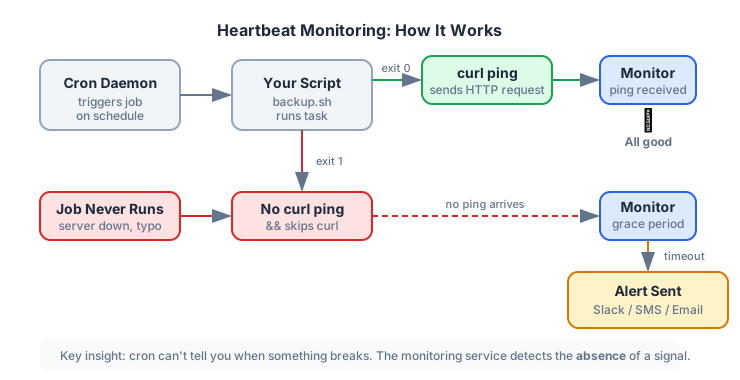
The simplest version adds one curl line:
0 2 * * * /home/deploy/scripts/backup.sh && curl -fsS --retry 3 --max-time 10 https://monitoring.example.com/ping/your-uuid > /dev/nullThe && means curl only runs if the backup script exits with code 0. If the script fails, no ping, and the monitoring service sends an alert. For the full pattern with start/success/fail signals, see our guide to monitoring cron jobs with curl.
WatchCron handles this with cron job monitoring that understands cron expressions natively. It knows that 0 3 * * 1 means Monday at 3 AM and calculates the expected arrival window automatically. When a ping is late, alerts go through Slack, SMS, voice calls, PagerDuty, or whatever channel you've configured. The free plan covers 20 checks. For Laravel developers, the scheduler has built-in ping methods that make setup even simpler.
Whatever tool you pick, add monitoring to any cron job that would cause problems if it silently stopped. The five minutes it takes to wire up a heartbeat ping is nothing compared to discovering your nightly database backup hasn't run in three weeks.
Know when your cron jobs stop running
Heartbeat monitoring for cron jobs with cron-expression-aware scheduling. 20 free checks, alerts via Slack, email, SMS, and voice calls.