
Fifteen minutes is the cron interval most people don't choose — it chooses them. cPanel defaults to it. WordPress wp-cron assumes it. Google Cloud Scheduler's free tier won't go lower. If you've landed on */15 * * * *, there's a decent chance something upstream picked it for you. That's fine. It's a good interval — 96 runs a day, four per hour, frequent enough to keep data fresh without burning through resources.
Below: how the cron every 15 minutes expression works, where it shows up by default, how to set it up properly (including replacing WordPress wp-cron), and the pitfalls specific to quarter-hour schedules.
Why 15 minutes is everywhere
Most shared hosting panels — cPanel, Plesk, DirectAdmin — set 15 minutes as the minimum cron interval. That's not a technical limitation; it's a policy choice to keep shared servers from getting hammered by hundreds of per-minute cron jobs. If your host caps you at 15 minutes and you need every 5 minutes, you'll need to either upgrade your plan or use an external scheduler.
WordPress baked this interval in too. Its built-in wp-cron doesn't use the system crontab at all — it fires on page visits, and one of its default schedules is "every 15 minutes." On a busy site, that works well enough. On a low-traffic site, scheduled posts publish late, WooCommerce emails queue up, and plugin sync tasks stall for hours because nobody visited to trigger the pseudo-cron. The fix is a real cron job — we'll cover the WordPress setup below.
The expression: */15 * * * *
The */15 in the minute field means "starting from 0, fire every 15th minute." Cron runs this at minutes 0, 15, 30, and 45 of every hour — four times per hour, 96 times per day.
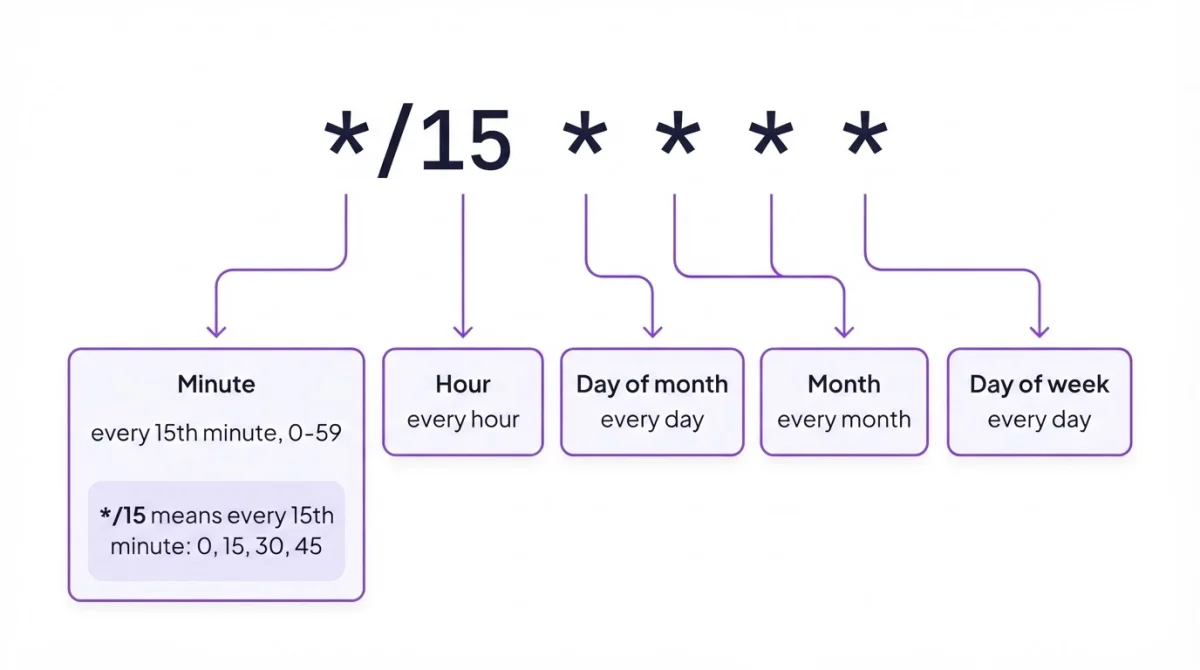
You might also see 0,15,30,45 * * * * in older crontabs or cPanel-generated entries. It's equivalent — both produce the same schedule. The */15 form is shorter and what most people write by hand.
15 divides 60 evenly, so the runs are perfectly spaced. Not every step value does this — */7 gives you 0, 7, 14, 21, 28, 35, 42, 49, 56, then jumps back to 0 with only a 4-minute gap. Stick to divisors of 60 (5, 10, 15, 20, 30) for even spacing. Build your expression visually if you're experimenting with other intervals.
Variations
Every 15 minutes during business hours:
*/15 9-17 * * 1-5 /path/to/script.shFires from 9:00 to 17:45, Monday through Friday — 36 runs per workday instead of 96. Good for API polling, inventory syncs, or health checks that only matter when someone's watching.
Every 15 minutes, offset by 3:
3,18,33,48 * * * * /path/to/script.shRuns at :03, :18, :33, :48 instead of :00, :15, :30, :45. On shared hosting, minute :00 is rush hour — hourly jobs, daily jobs, and every */15 task on the server all fire at once. Shifting by a few minutes spreads the load. The alternative syntax 3-59/15 * * * * does the same thing but only runs at 3, 18, 33, 48 — slightly less readable, same result.
Every 15 minutes, but only at night:
*/15 0-6 * * * /path/to/script.shMidnight to 6:45 AM — useful for batch processing or database maintenance that shouldn't compete with daytime traffic.
Not sure your expression is right? Validate it or check the examples library for more patterns.
Setting it up
Standard crontab:
crontab -eAdd your entry with absolute paths. Cron doesn't load your shell profile.
*/15 * * * * /usr/bin/php /var/www/myapp/artisan schedule:run >> /var/log/cron-myapp.log 2>&1Run crontab -l to confirm. The >> appends output to a log file — without it, cron tries to email the results, and on most servers that email goes nowhere.
WordPress wp-cron replacement:
Step one: disable the built-in pseudo-cron. Add this to wp-config.php:
define('DISABLE_WP_CRON', true);Step two: add a real cron entry that hits wp-cron.php every 15 minutes:
*/15 * * * * /usr/bin/php /var/www/html/wp-cron.php >> /var/log/wp-cron.log 2>&1Or via HTTP if your server is configured for it:
*/15 * * * * /usr/bin/curl -s https://example.com/wp-cron.php?doing_wp_cron >> /var/log/wp-cron.log 2>&1We've seen WordPress sites where scheduled posts published hours late because wp-cron was waiting for a visitor that never came. Replacing it with a real cron entry fixed it instantly — one of those changes where you wonder why it isn't the default. For a deeper setup guide, see Cloud Cron for WordPress.
Pitfalls
WordPress double-firing. If you add a system cron at */15 but forget define('DISABLE_WP_CRON', true), scheduled tasks run twice — once from visitor traffic, once from cron. Duplicate emails, double-published posts, race conditions in WooCommerce order processing. Always disable wp-cron before adding the system cron entry.
The :00 stampede. Every */15 job on the server fires at :00, :15, :30, :45. But minute :00 is especially crowded because hourly jobs and daily midnight jobs pile on top. If your script is slow or resource-intensive, offset it: 3,18,33,48 * * * * costs nothing and avoids the collision.
Assuming "within 15 minutes." A cron job every 15 minutes runs at fixed clock positions, not relative to when you saved. If you set up the crontab at 14:12, the first run is at 14:15 — three minutes later, not fifteen. On the flip side, if you save at 14:16, you wait until 14:30. Cron aligns to the clock, not to you.
Overlap on slow scripts. At 15-minute intervals, overlap is less likely than with every 5 minutes — but it still happens with heavy database exports or API crawlers. Lock it:
*/15 * * * * /usr/bin/flock -n /tmp/myjob.lock /path/to/script.shWhen 15 minutes isn't enough — and when it's too much
| Schedule | Expression | Runs per day |
|---|---|---|
| Every 5 minutes | */5 * * * * | 288 |
| Every 10 minutes | */10 * * * * | 144 |
| Every 15 minutes | */15 * * * * | 96 |
| Every 30 minutes | */30 * * * * | 48 |
| Every hour | 0 * * * * | 24 |
| Every day at midnight | 0 0 * * * | 1 |
Honestly, 96 runs a day hits a nice balance — frequent enough that stale data doesn't sit around long, rare enough that you won't blow through API rate limits. Use the cron job calculator to preview when any expression fires next.
Confirming it works
Check the system log after 15 minutes:
grep CRON /var/log/syslog | tail -5That proves cron ran the command. For the command's own output, check whatever log file you redirected to. If neither shows anything — wrong path, wrong permissions, or cron isn't running at all.
For jobs that matter, logs aren't enough. A cron job running 96 times a day can fail silently for hours before someone notices. Heartbeat monitoring flips this: your script pings a URL after each successful run, and if the ping goes missing, you get an alert.
When crontab isn't an option
If your hosting panel only gives you 15-minute intervals and you need that — great, you're set. But if it locks cron out entirely, or your WordPress host doesn't allow crontab access, an external service handles it. Set the expression to */15 * * * *, point it at your endpoint, and it fires the request every 15 minutes from its own infrastructure. WatchCron's Cloud Cron does this — and if the endpoint fails, it retries and alerts through 10+ notification channels.
Replace wp-cron with a real scheduler
Set a 15-minute schedule, point it at your wp-cron.php endpoint, and get alerted if WordPress stops responding. Free plan includes 3 Cloud Cron jobs.