The cron expression for every 5 minutes is */5 * * * *. Add it to your crontab with the command you want to run, and cron will execute it at minutes 0, 5, 10, 15, 20, 25, 30, 35, 40, 45, 50, and 55 — twelve times per hour, 288 times per day.
That's the short answer. Below we walk through exactly how cron every 5 minutes works, how to set it up properly, and the mistakes that cause it to silently not run.
How */5 * * * * works
Left to right, the five fields are: minute, hour, day of month, month, day of week. The * means "every possible value." The /5 is a step operator — it divides the range into intervals.
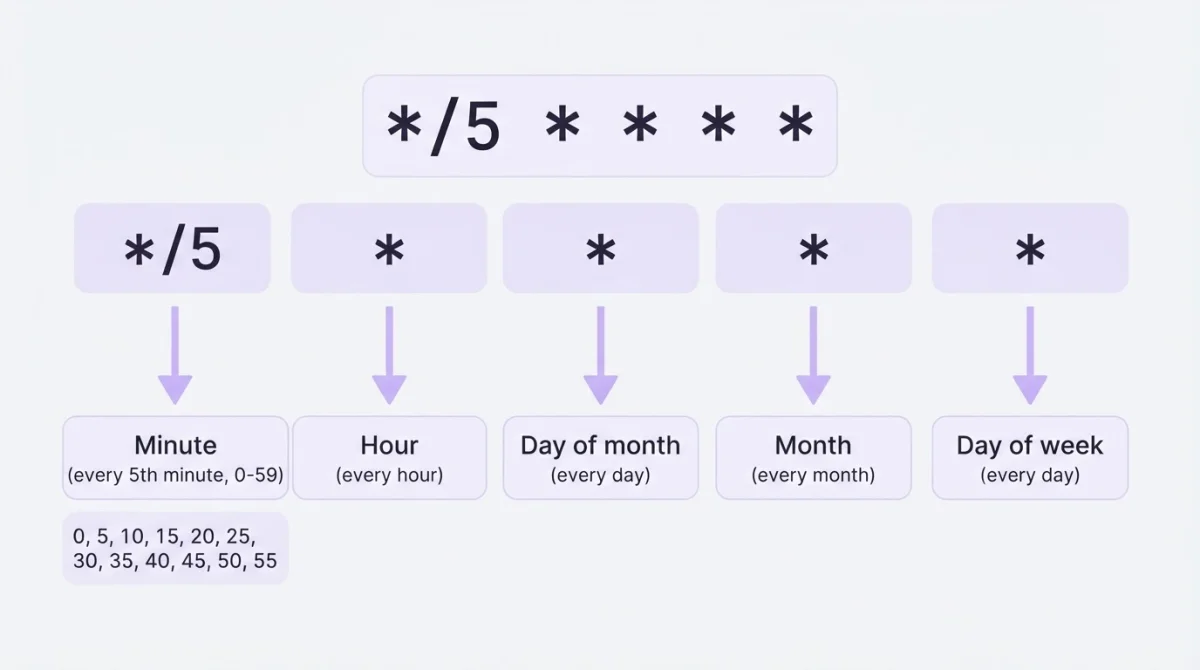
So */5 in the minute field means "starting from 0, fire every 5th minute." The reason this works cleanly is that 5 divides 60 evenly. Try */7 and you'll get an uneven pattern: 0, 7, 14, 21, 28, 35, 42, 49, 56 — nine runs with a 4-minute gap between 56 and 0 each hour. Not what most people expect.
You can build and test expressions visually if you want to experiment with different intervals before committing them to your crontab.
Adding it to your crontab
Open the crontab editor for the current user:
crontab -eAdd a line with the expression followed by your command — that's all it takes to configure crontab every 5 minutes. Always use absolute paths, because cron runs with a minimal environment and won't find commands through your shell's PATH.
*/5 * * * * /usr/bin/php /var/www/myapp/artisan schedule:run >> /var/log/cron-myapp.log 2>&1Save and exit. Verify it's stored:
crontab -lA few things to get right:
- Absolute paths everywhere.
/usr/bin/php, notphp. Find yours withwhich php. - Output redirection. Without
>> /path/to/log 2>&1, cron tries to email output to the user. If mail isn't configured (it usually isn't), the output just disappears. - No interactive commands. Cron doesn't have a terminal. Anything that expects user input will hang.
- Environment variables. Cron doesn't load your shell profile. If your script depends on
$HOME,$LANG, or custom vars, define them at the top of the crontab or inside the script itself.
Common mistakes
5 * * * * is not the same as */5 * * * *. This trips people up constantly. Drop the */ and your frequency changes by a factor of twelve — from 288 runs a day to 24. The first expression runs once per hour, at minute 5 only.
What about * */5 * * *? That runs every minute — but only during hours 0, 5, 10, 15, and 20. That's 300 executions a day instead of 288, and with big gaps between hour 20 and hour 0 the next day. Easy to miss. Fields matter.
Job overlap. If your script takes 7 minutes to finish and cron fires it every 5, you'll have overlapping processes. They'll compete for the same database connections and file locks. Use flock to prevent this:
*/5 * * * * /usr/bin/flock -n /tmp/myjob.lock /path/to/script.shThe -n flag makes flock exit immediately if the lock is already held, so the new instance just doesn't run instead of queuing up.
Variations
Every 5 minutes during business hours only:
*/5 9-17 * * 1-5 /path/to/script.shThis fires between 9:00 and 17:55 at five-minute intervals, Monday through Friday. Useful for API polling or health checks that only matter during working hours.
Every 5 minutes with a 2-minute offset:
2-57/5 * * * * /path/to/script.shRuns at minutes 2, 7, 12, 17, 22, 27, 32, 37, 42, 47, 52, 57. If multiple servers all use */5, they'll hammer your database at the same instant. Every :00 mark becomes a stampede. Offsetting staggers the load.
Not sure about your expression? Validate it before deploying, or browse the cron expression examples library for more patterns.
Related schedules
| Schedule | Expression | Runs per day |
|---|---|---|
| Every minute | * * * * * | 1,440 |
| Every 5 minutes | */5 * * * * | 288 |
| Every 10 minutes | */10 * * * * | 144 |
| Every 15 minutes | */15 * * * * | 96 |
| Every 30 minutes | */30 * * * * | 48 |
| Every hour | 0 * * * * | 24 |
| Every day at midnight | 0 0 * * * | 1 |
Use the cron job calculator to see exactly when any expression fires next.
Verifying the job runs
Don't trust crontab -l. It proves the entry exists, not that anything actually ran. Here's how to confirm execution.
Check the system log:
# Debian/Ubuntu
grep CRON /var/log/syslog | tail -20

# RHEL/CentOS
grep CRON /var/log/cron | tail -20

# systemd-based
journalctl -u cron --since "1 hour ago"
You should see lines like CRON[12345]: (user) CMD (/path/to/script.sh). If cron ran the command, it'll show up here — regardless of whether the command itself succeeded or failed.
Check your own log file. If you redirected output with >> /var/log/cron-myapp.log 2>&1, look there for your script's actual output and error messages.
For jobs that matter — monitor them. Logs work until nobody checks them. A cron job running 288 times a day can fail silently for hours before someone scrolls through syslog and notices. Heartbeat monitoring flips this: your script pings a URL after each run, and if a ping goes missing, you hear about it.
When a server-side crontab isn't an option
On shared hosting, crontab access is rare. Some plans limit intervals to 15 minutes or an hour. WordPress sites on basic hosting can't run wp-cron.php reliably because it depends on visitor traffic to trigger.
An external cron service handles this differently. You give it a URL and a schedule — */5 * * * * — and it sends an HTTP request to that URL every 5 minutes from its own infrastructure. No server access required. WatchCron's Cloud Cron does this and also monitors the result: if your endpoint returns an error or stops responding, you get alerted through Slack, email, Telegram, or any of 10+ channels.
Run cron jobs without managing crontab
Three Cloud Cron jobs and 20 monitoring checks on the free plan. No credit card.