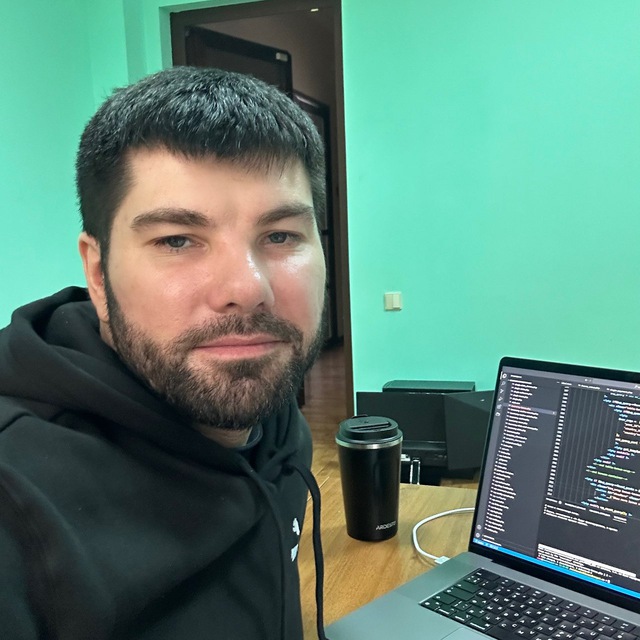
Most monitoring tools give you one account and one bucket for everything. That works fine for a solo developer with a personal project and a staging server. It stops working the moment a second person needs access, or the moment you're running monitoring for more than one client, product, or environment. WatchCron is built around projects: isolated workspaces with their own monitors, channels, team members, and status pages. So everything stays separate without needing separate accounts.
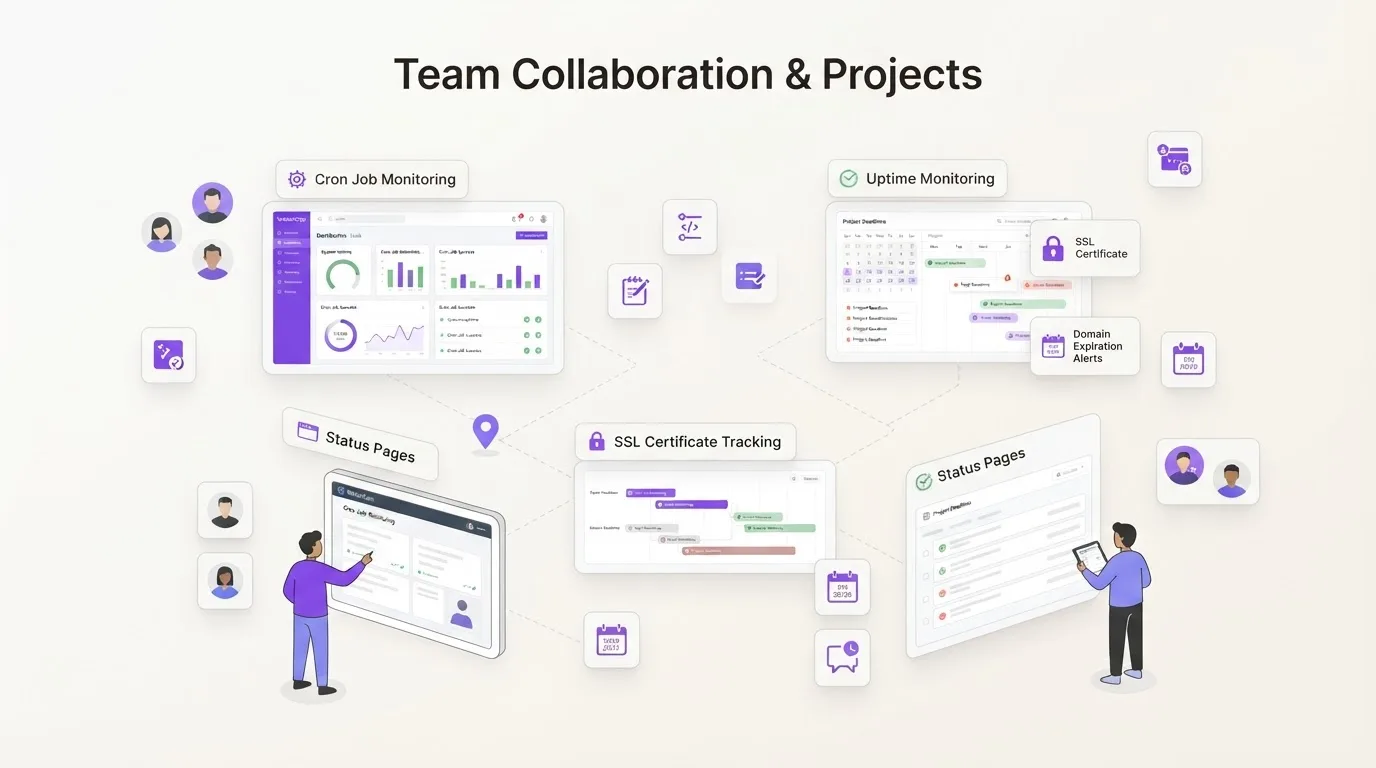
A project in WatchCron is a self-contained workspace. Each project has its own set of cron checks, uptime monitors, port monitors, SSL and domain watches, blocklist monitors, alert channels, incidents, and optionally a public status page. Nothing leaks between projects. An alert from your client's production environment won't land in your personal staging Slack channel, and a team member invited to one project can't see another unless you explicitly grant access.
Why projects exist instead of folders or tags
We could have gone the folder route: one account, one dashboard, and folders or tags to group monitors visually. A few competitors do exactly that, and it works right up to the point where two people need different permissions on different groups, or where you want a separate status page for each client. Folders don't isolate anything: everyone sees everything, alerts flow through the same channels, and there's no way to invite a client to see their own monitors without exposing the rest.
Projects are a harder boundary. Each one has its own team, its own notification channels, its own API key, and its own status page slug. That isolation is the thing that makes multi-client setups and multi-environment workflows possible without workarounds.
Three roles, and what each one can do
Every project has an owner (the person who created it) plus invited members. When you invite someone, you pick one of three roles:
Admin — full control. Can create, edit, and delete monitors, manage channels, open incidents, invite or remove other members, and change project settings. Essentially the same as the owner, minus the ability to delete the project itself.
Member — operational access. Can create and edit monitors, manage channels, and work with incidents, but can't invite or remove people, and can't change project-level settings. This is the role for engineers who need to set up checks and respond to alerts but shouldn't manage the team.
Read-only — view access. Can see monitors, their status, history, and alerts, but can't change anything. Useful for stakeholders, clients, or managers who need visibility without the ability to accidentally mute a critical alert or delete a monitor.
Roles are per-project, not per-account. The same person can be an admin on one project and read-only . Because their level of access should match their responsibility for that specific set of infrastructure, not their job title.
Inviting a team member takes thirty seconds
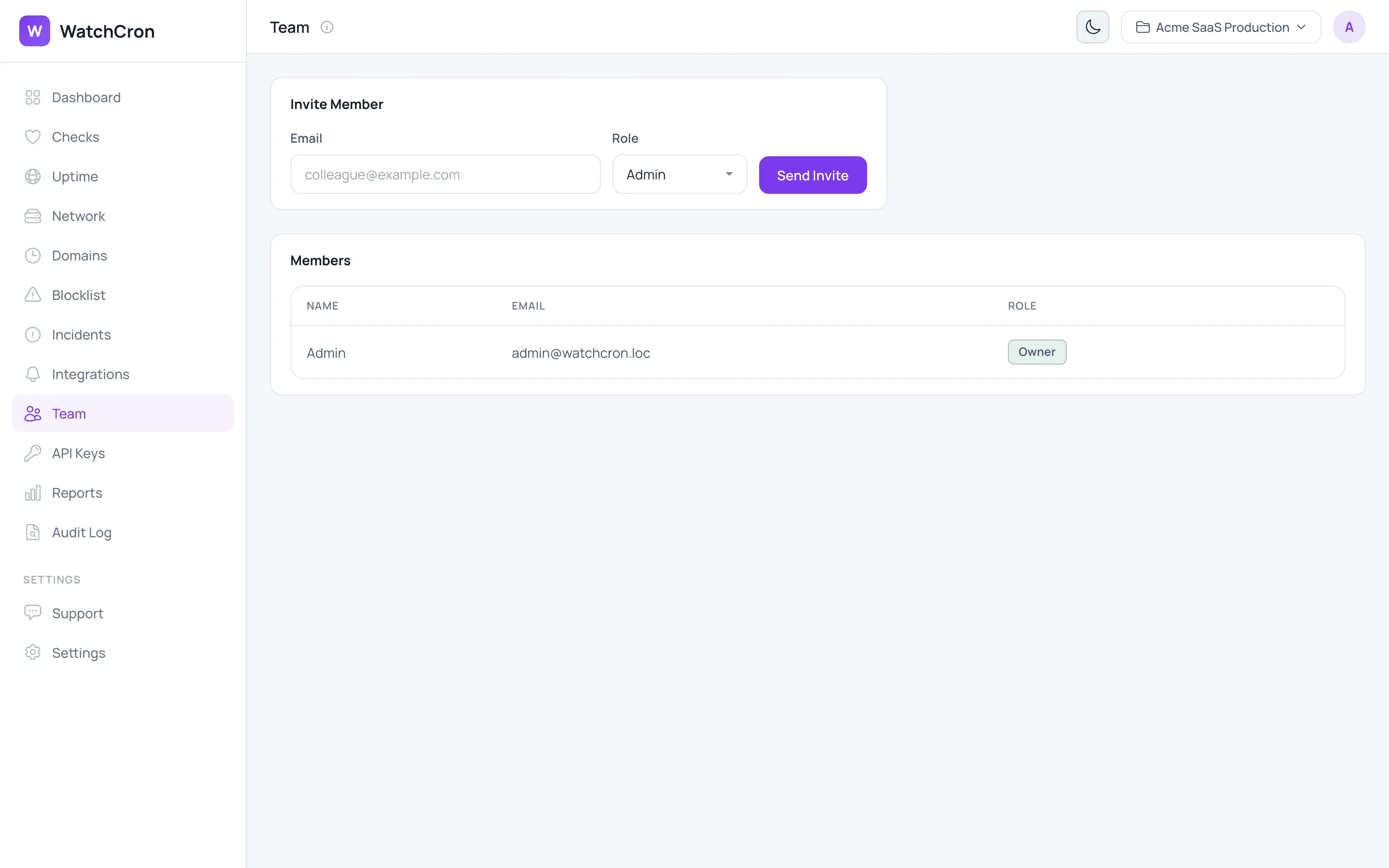
Go to Team in the project sidebar, enter an email address, pick a role, and hit Send Invite. The person receives an email with a link that's valid for seven days. If they already have a WatchCron account, the project appears in their project switcher immediately after accepting. If they don't, they create an account first and the invitation is applied on signup.
You can cancel a pending invitation before it's accepted, change a member's role at any time from the same screen, or remove someone entirely. Removing a member revokes their access . Their own projects and any other projects they belong to are unaffected.
One click to switch context between projects
The project switcher sits in the top of the dashboard sidebar. Click it, and a dropdown shows every project you own or have been invited to. Switching is instant. The dashboard, monitors, channels, team page, and settings all reflect the selected project. There's no "global view" across all projects on purpose: that would undermine the isolation that makes projects useful in the first place. If you need a bird's-eye view, the API lets you pull data from multiple projects programmatically.
How teams actually use projects
The most common setup we see isn't complicated. A web agency creates one project per client: "Acme Corp Production", "Acme Corp Staging", "Baker Ltd", and invites the relevant engineers to each. The client gets a read-only invite so they can check status without filing a ticket. Alert channels are configured per project: the agency's Slack channel for internal alerts, the client's email for downtime notifications.
SaaS teams tend to split by environment: production, staging, and sometimes a separate project for infrastructure monitors (database ports, Redis, queue workers) that don't belong on the customer-facing status page. DevOps teams running monitoring for multiple internal products use one project per product, each with its own status page and its own on-call channel.
Freelancers start with one project and the free plan. When a second client shows up, the Starter plan at $7/month opens up five projects , enough to keep things separate without overcomplicating it.
How many members and projects each plan includes
Every plan includes projects and team members, starting from the free tier:
| Plan | Projects | Team members | Price |
|---|---|---|---|
| Free | 1 | 1 (owner only) | $0 |
| Starter | 5 | 3 | $7/month |
| Pro | 20 | 10 | $19/month |
| Business | Unlimited | Unlimited | $49/month |
The free plan is genuinely useful for a single developer or a personal project: one project, 20 cron checks, email and webhook alerts. Once you need a second project or a second pair of eyes, Starter covers the gap at a price that doesn't require a procurement process.
What project-based monitoring won't do
Projects isolate monitors, . They don't create entirely separate billing accounts. All projects on your account share the same plan and its limits. If your plan includes 250 checks across 20 projects, those 250 checks are distributed however you see fit, not 250 per project. If you need hard billing separation (say, reselling monitoring to clients who each get their own invoice), you'd create separate WatchCron accounts, one per client. Projects are for organizing work, not for billing isolation.
There's also no cross-project dashboard today. You can't see a single screen showing "all monitors across all projects" in the web UI. The API supports it. You can query each project , but the dashboard is deliberately scoped to one project at a time. We may add an overview screen eventually, but for now, isolation wins over convenience.
Start collaborating on your monitoring
The free plan includes one project and 20 checks. When your team grows, upgrade to add more projects, members, and alert channels. Plans start at $7/month.