Every WordPress troubleshooting thread about missed scheduled posts ends the same way: "disable wp-cron and use a real cron." The advice is correct, but it skips the part where most WordPress users don't have SSH access, don't want to manage a crontab, and have no way to know when the replacement itself stops working. Cloud Cron is the wp-cron alternative that fills that gap. It triggers your WordPress tasks from outside on a fixed schedule, logs every call, and alerts you when one fails.
If you've already read about how Cloud Cron works as a general-purpose scheduler, this page covers the WordPress side specifically: what breaks when wp-cron misfires, how to replace wp-cron with an external service, and which tasks need the most attention.
The wp-cron tax that every WordPress site pays
You probably already know the basics: wp-cron.php piggybacks on page loads instead of running on a timer. We cover why that's unreliable in more detail on our WordPress monitoring page. But there's a dimension most guides skip: the cascading effect.
A single missed wp-cron trigger doesn't just delay one task. WordPress queues up everything that was supposed to run: the UpdraftPlus backup, the WooCommerce email batch, the transient cleanup, the auto-update check, the scheduled post. When the next visitor finally triggers wp-cron, all of those fire at once. On a shared host with tight memory limits, that burst can exceed the PHP memory cap and crash the request entirely, which means none of the tasks complete, and they queue up again for the next visitor. We've seen hosting support tickets where this loop ran for weeks before anyone noticed.
The sites most affected are the ones where nobody's watching: low-traffic blogs, client microsites, staging environments. And the timing data from each execution reveals more than just pass/fail, but we'll get to that.
How to replace wp-cron with Cloud Cron
The setup has two parts. First, tell WordPress to stop trying:
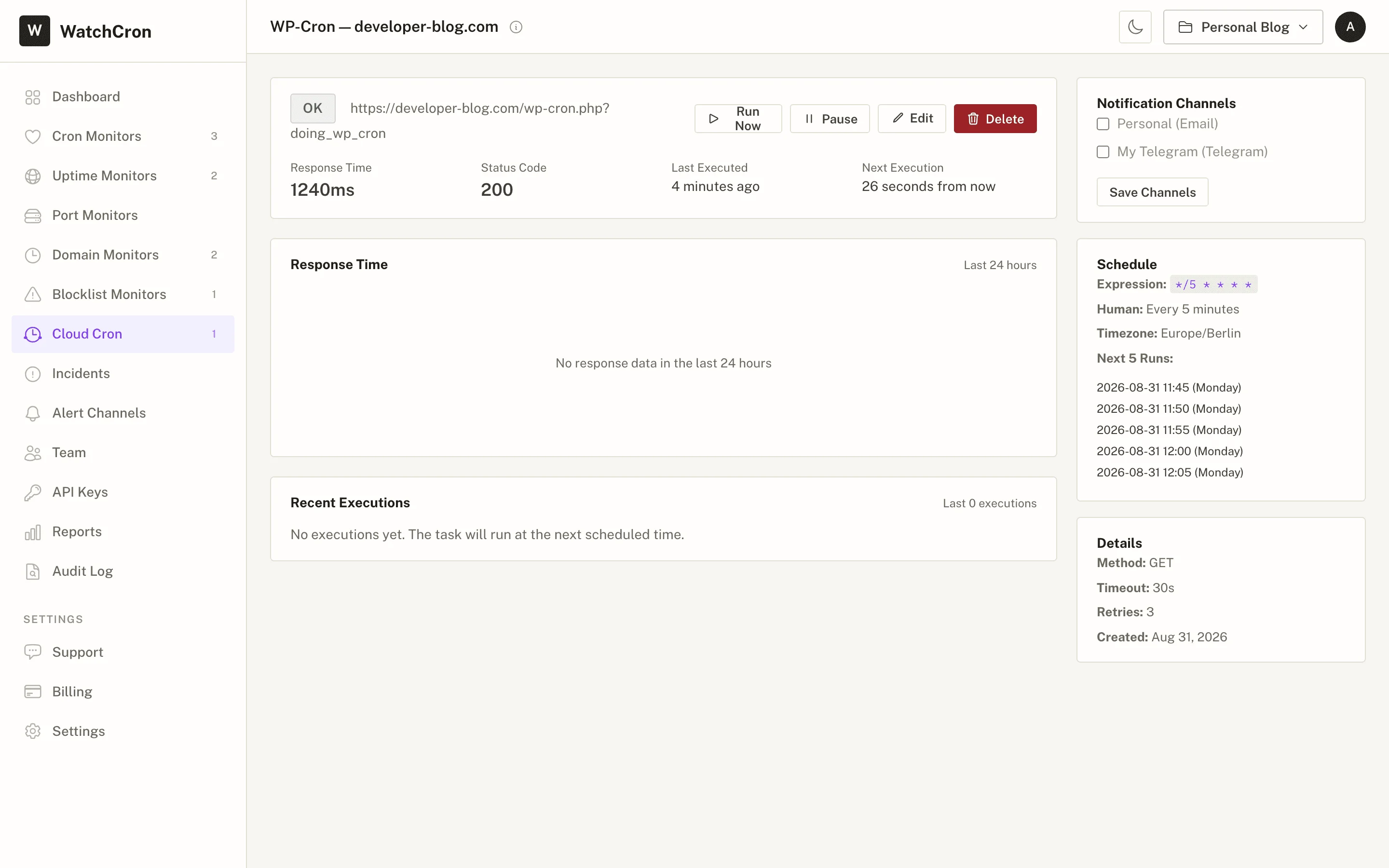
define('DISABLE_WP_CRON', true);Add that anywhere in wp-config.php before the "stop editing" comment. Then create a Cloud Cron task pointed at your wp-cron.php endpoint, with the ?doing_wp_cron parameter that tells WordPress this is a cron trigger, not a regular visit.
The main reason to run every minute is WooCommerce: subscription renewals and time-sensitive sale activations need tight scheduling. For everything else, every 5 minutes is plenty. The call is lightweight either way, because wp-cron checks what's due and exits if nothing needs to run.
Cloud Cron retries automatically if a call fails, then fires an alert through your configured channels after the retries are exhausted. Every execution shows up in a log with the HTTP status code and response duration. That log turns out to be surprisingly useful for WordPress specifically.
The tasks people forget depend on wp-cron
Scheduled posts are the obvious one. Miss a wp-cron cycle and your "goes live at 9 AM" post publishes whenever the next visitor shows up. But the less visible failures cost more:
- Backup plugins queue their jobs through wp-cron. UpdraftPlus, BackWPup, BlogVault all use the same mechanism. A backup that silently skips for three weeks is unrecoverable if you needed a restore from last Tuesday
- WooCommerce's Action Scheduler funnels subscription renewals, bulk email sending, webhook retries, and analytics roll-ups through wp-cron as its trigger. When that trigger misfires, the queue backs up and dumps everything at once during the next page load, spiking memory and slowing down whatever customer happens to be browsing at that moment
- Security scans and auto-updates. Wordfence schedules malware scans through wp-cron. Core and plugin auto-updates depend on the same schedule. A site where these quietly stop running for a month is accumulating unpatched vulnerabilities, and honestly, most people don't check the update log until something else breaks
- FluentCRM, Groundhogg, and newsletter plugins process their send queues on wp-cron too. An email sequence that should fire 2 hours after signup might sit for 14 hours if the site had no traffic overnight
None of these produce admin-panel warnings. The real question is whether you'd catch the drift before it became an emergency.
Why the response time log matters for WordPress
Here's something we didn't anticipate when we built Cloud Cron: the execution log turned out to be a WordPress health diagnostic.
A healthy wp-cron call on a reasonably configured host returns in 1-3 seconds. When that number starts climbing, something changed. Maybe a plugin hooked into wp_cron with an expensive database query. Or the object cache died and every task hits MySQL directly instead of Redis. Maybe the Action Scheduler queue has accumulated 40,000 pending items and each trigger chews through a batch that should have been processing steadily all along.
The response time chart catches this drift before the endpoint actually times out. One user tracked down a malfunctioning WooCommerce analytics plugin that added 12 seconds to every wp-cron execution. That's the kind of thing you'd never spot without timing data, because the call still returned 200.
Cloud Cron vs. your hosting provider's built-in cron
Managed WordPress hosts run their own server-side cron to compensate for wp-cron's design. The intervals vary: WP Engine runs every minute, Kinsta every 15, some shared hosts every 30 or not at all. For basic task processing, that's usually sufficient.
Where it falls short is visibility. Your hosting provider's cron produces no logs you can see, sends no alerts when it fails, and gives you no way to change the frequency. If a server migration breaks the cron entry, or PHP starts segfaulting on the wp-cron call, nothing reports the problem. You notice when symptoms accumulate: emails stop going out, backups go stale, posts miss their schedule.
Running both together works well. Your host's cron keeps running as a safety net while Cloud Cron adds the execution log, the timing chart, and the failure alerts. If you need tighter scheduling, every minute instead of every 15, that's a one-field change in the task settings.
How agencies and Multisite networks handle wp-cron at scale
For agencies managing client WordPress installations, or anyone running WordPress Multisite, the math changes. Each site (or each subsite on Multisite) needs its own wp-cron trigger, because WordPress processes tasks per-site, not globally.
A typical agency pattern: one Cloud Cron task per client site, all organized under separate projects with per-client alert channels. When a client's staging environment throws errors overnight, the alert routes to the right person instead of waking the whole team. The REST API handles bulk creation if you're onboarding dozens of sites. Building a shell script that creates one task per site takes about five minutes.
Multisite adds a wrinkle: each subsite's wp-cron URL follows the pattern https://subsite.example.com/wp-cron.php?doing_wp_cron or https://example.com/subsite/wp-cron.php?doing_wp_cron depending on your network setup. One task per subsite, each on its own schedule. We've seen Multisite networks with 40+ subsites running fine on the Pro plan's 50 Cloud Cron jobs.
What this doesn't replace
Cloud Cron triggers wp-cron from outside, but it doesn't change what happens inside WordPress. You might assume a 200 response means everything worked, but that's not always true. If a plugin's cron hook is broken, Cloud Cron will call wp-cron successfully and the hook will still fail. You'll see a fast response time and a clean status code, and the underlying task still won't complete. For that, you need WP Crontrol or the wp cron event list command to inspect which hooks are registered and whether they're actually running.
If your endpoint is behind HTTP authentication, IP restrictions, or a maintenance-mode plugin that returns 503 to external requests, you'll need to whitelist Cloud Cron's requests. Custom headers and HTTP Basic Auth are built into the task settings for cases like this.
For long-running WordPress tasks that exceed the 60-second timeout (large database exports, bulk media processing, full-site migrations) this isn't the right tool. Run those on your server directly and use heartbeat monitoring to verify they completed.
What a WordPress cron job service costs
One WordPress site typically needs a single Cloud Cron task for the wp-cron trigger. The free plan gives you 3 Cloud Cron jobs and 20 monitoring checks, which covers the cron trigger, an uptime check, an SSL expiry alert, and a domain renewal watch with checks left over.
Agencies and freelancers with 10-15 client sites fit comfortably into the Starter tier ($7/month), which includes 15 Cloud Cron jobs and adds Slack and Telegram notifications. Beyond that, the Pro plan handles up to 50 scheduled tasks across 20 projects, enough for a Multisite network or a portfolio of managed WordPress installations.
One task, one URL, and your scheduled posts, backups, and WooCommerce jobs run on time, whether anyone visits or not. Free tier, no plugin required.