A monitoring alert only works if someone actually sees it. An email that sits unread while the on-call engineer watches Slack is a missed alert in practice, even if the system sent it on time. WatchCron routes notifications through ten channels: email, Slack, Telegram, Discord, Microsoft Teams, SMS, voice calls, webhooks, PagerDuty, and OpsGenie, so the alert reaches the person, not just the inbox.
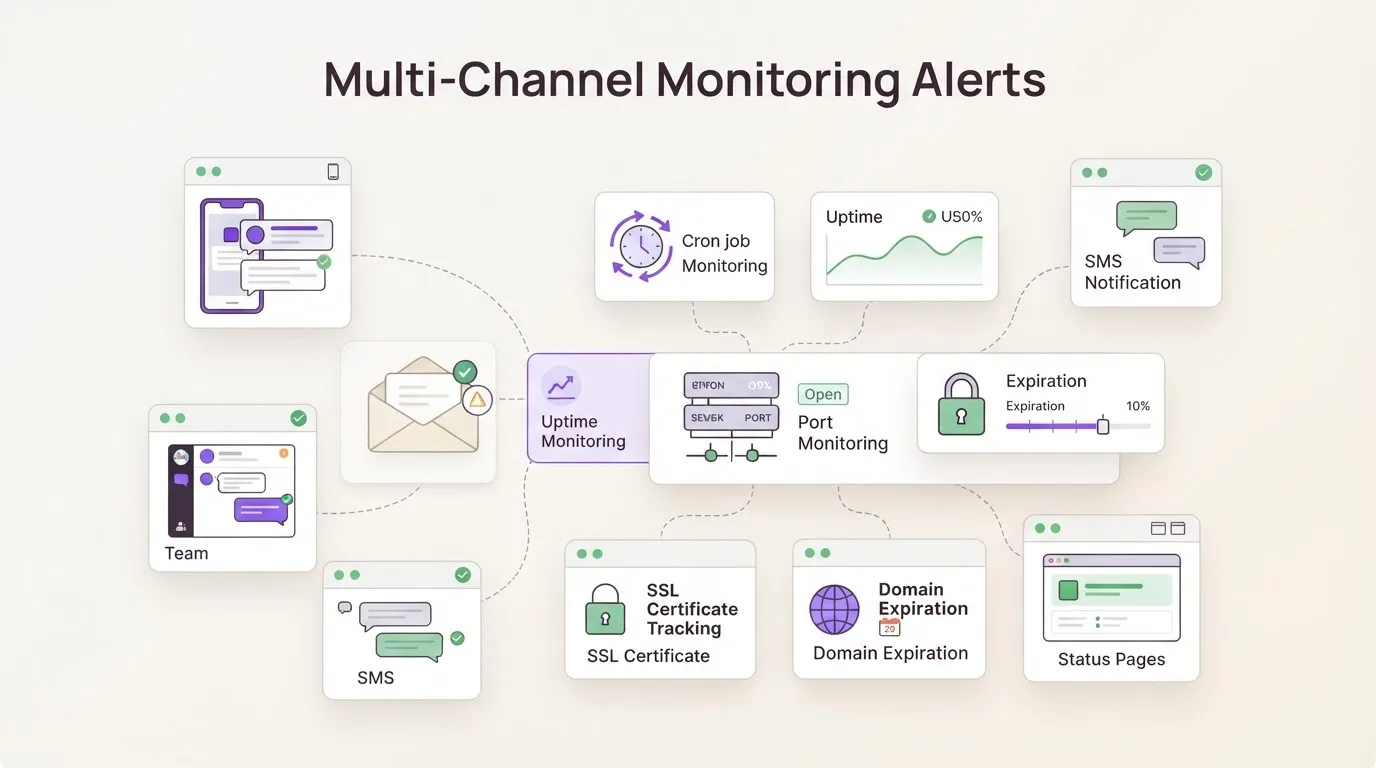
You configure channels once at the project level, and they cover every monitor type: cron checks, uptime monitors, port monitors, SSL watches, domain expiration checks, blocklist monitors. Connect Slack to the project, and every monitor in that project can use it. No copy-pasting webhook URLs into each check one by one.
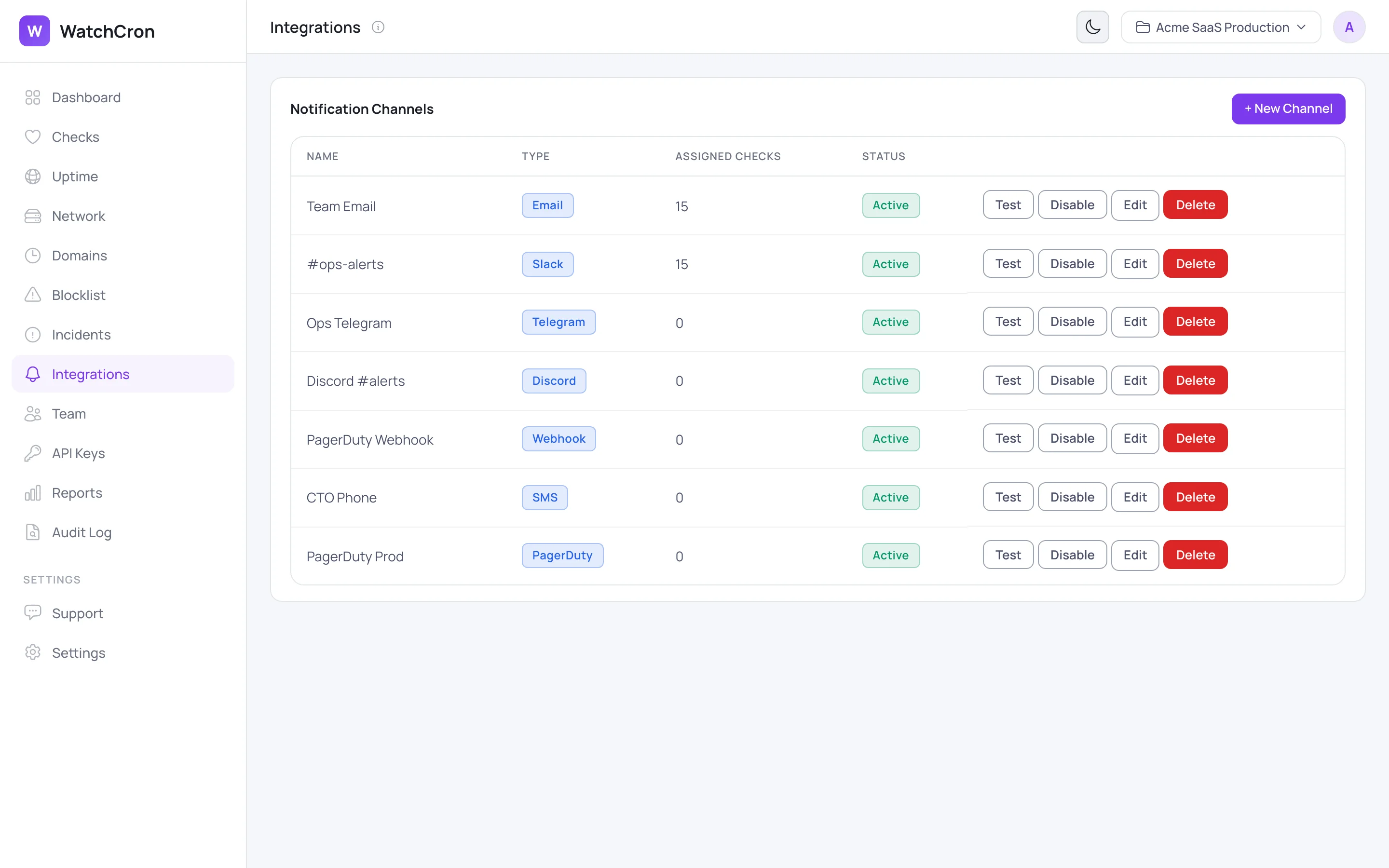
Ten alert channels, gated by what your team actually needs
Every plan, including the free one, starts with email and webhooks. If you're a solo developer running a handful of crons, that's probably enough. Webhooks fire a JSON payload to any URL you control, so if your incident tooling already speaks HTTP (a custom Slack bot, an internal dashboard, something stitched together with n8n), it works on day one without an upgrade.
Most teams outgrow email-only alerts pretty quickly, though. The Starter plan adds Slack, Telegram, Discord, and Microsoft Teams. An alert lands in a shared channel within seconds of a state change, visible to everyone on-call without anyone having to open a separate dashboard or check their inbox. For a five-person team, this is usually the entire notification stack.
Pro brings SMS for when a phone buzz cuts through better than a chat notification, the kind of alert you want for a payment processor going down at 2 AM. And Business adds voice calls, PagerDuty, and OpsGenie. We grouped those three together deliberately: teams that need PagerDuty escalation policies almost always need voice fallback too, and splitting them across separate plans would have forced an awkward upgrade path just to complete the on-call setup.
One thing we didn't want to copy from competitors: per-alert billing. Cronitor and Better Stack meter SMS and voice by credit or by volume tier. Here, the plan price is the whole price. If you have a rough week and a hundred SMS alerts go out, the bill doesn't move.
How monitoring alerts route to the right channel
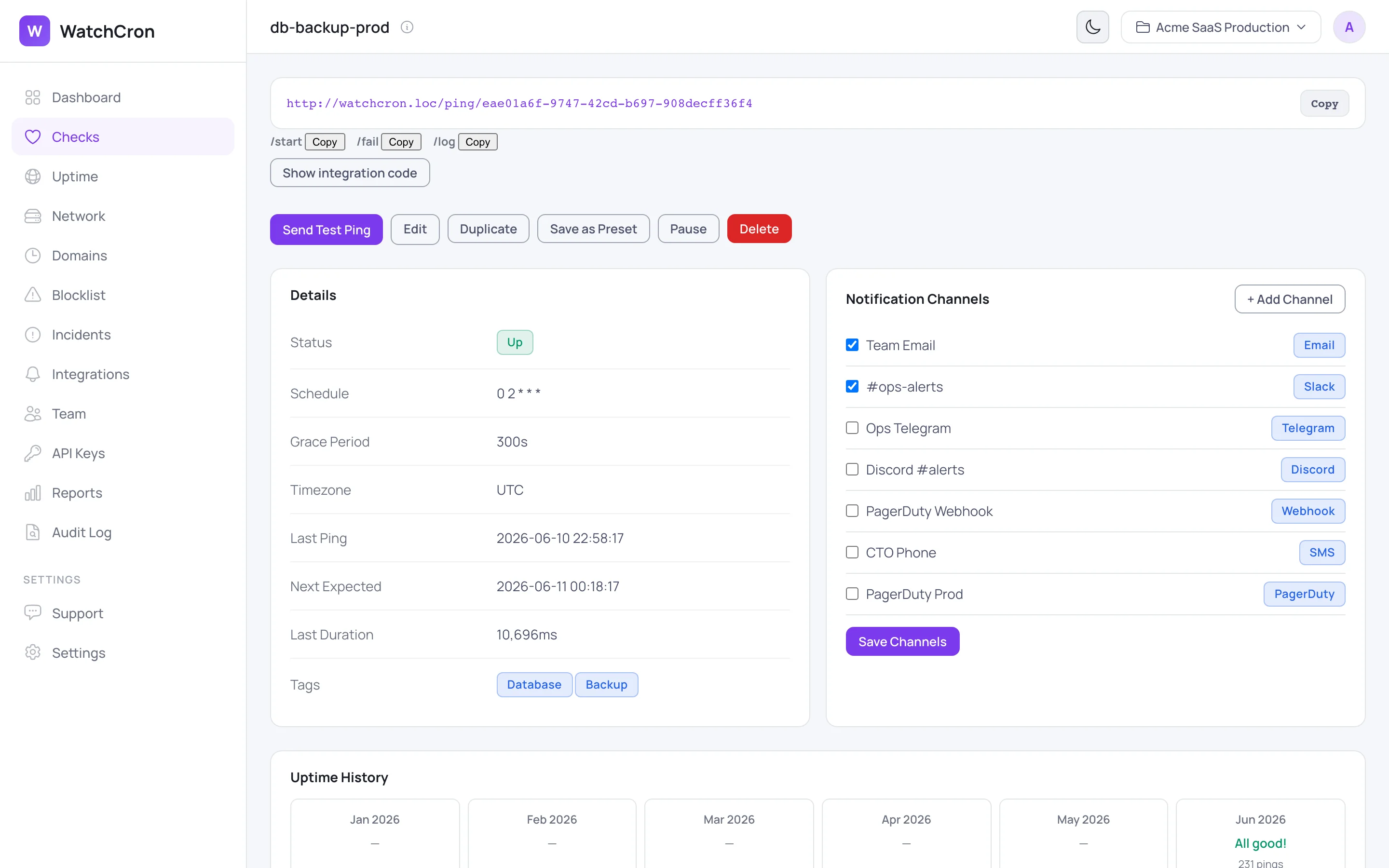
Channels live at the project level, not per monitor. You connect a Slack workspace or paste a Telegram bot token once, and every monitor in that project can use it. Each monitor then has checkboxes to pick which of the available channels it should alert through. A database backup might page Slack and email, while a payment-critical uptime check adds SMS and PagerDuty on top.
When a monitor flips from Up to Down (or moves through Grace into Down, for cron checks), the alert fires to every active channel assigned to that monitor. Recovery notifications go out the same way: when the monitor comes back, the same channels get a resolution notice without any manual closing.
Each channel type carries the information that matters for that medium. A Slack message includes the monitor name, the new status, how long it was down, and a direct link back to the dashboard. An SMS keeps it to one line: what failed and when. A PagerDuty event maps to an incident with the right severity so your existing escalation policies take over from there.
Webhook alerts as the escape hatch
Webhooks turn WatchCron into a trigger for any system that accepts HTTP. The payload is a JSON object with the monitor ID, name, old status, new status, and a timestamp, straightforward enough to pipe into Zapier, n8n, a Lambda function, or a short script on your own server. Webhooks are available on every plan, including free, so they work as a bridge for teams that have outgrown email-only alerts but don't need Slack yet.
Common uses include opening Jira tickets automatically on downtime, flipping a feature flag when a dependency health endpoint stops responding, and posting to internal Mattermost or Google Chat instances that don't have a native integration. The payload format is stable and documented, so building automation on top of it is safe.
What multi-channel alerts don't replace
Multi-channel alerts notify your team. They don't notify your customers. For customer-facing communication during outages, pair alerting with a public status page and incident management — both included on every plan, including the free one. The alert gets your team moving; the status page keeps users informed while you fix it.
Alert deduplication and on-call rotation are also outside scope. If your team runs formal on-call schedules with escalation windows, the PagerDuty and OpsGenie integrations on Business hand the incident off to those systems. We trigger the alert; they manage who gets paged and when.
Route alerts where your team already works
The free plan starts with email and webhooks for up to 20 cron checks. Add Slack, Telegram, Discord, and Teams on Starter. No per-alert charges on any plan.