I look up cron syntax more often than I'd like to admit, so I put together this cron expression cheat sheet. Not because it's complicated (five fields, a handful of special characters) but because I mix up the field order or forget whether Sunday is 0 or 7. I've misconfigured enough cron job schedules in production to know that the gap between "I think this is right" and "this is actually right" causes real problems.
Every example here is something I've used in production or debugged when it went wrong. If you want to build and validate expressions visually instead of memorizing syntax, I made a cron expression builder tool that translates between human-readable schedules and cron strings.
Cron expression syntax: the five fields
A cron expression is five values separated by spaces. Left to right: minute, hour, day of month, month, day of week. Then the command.
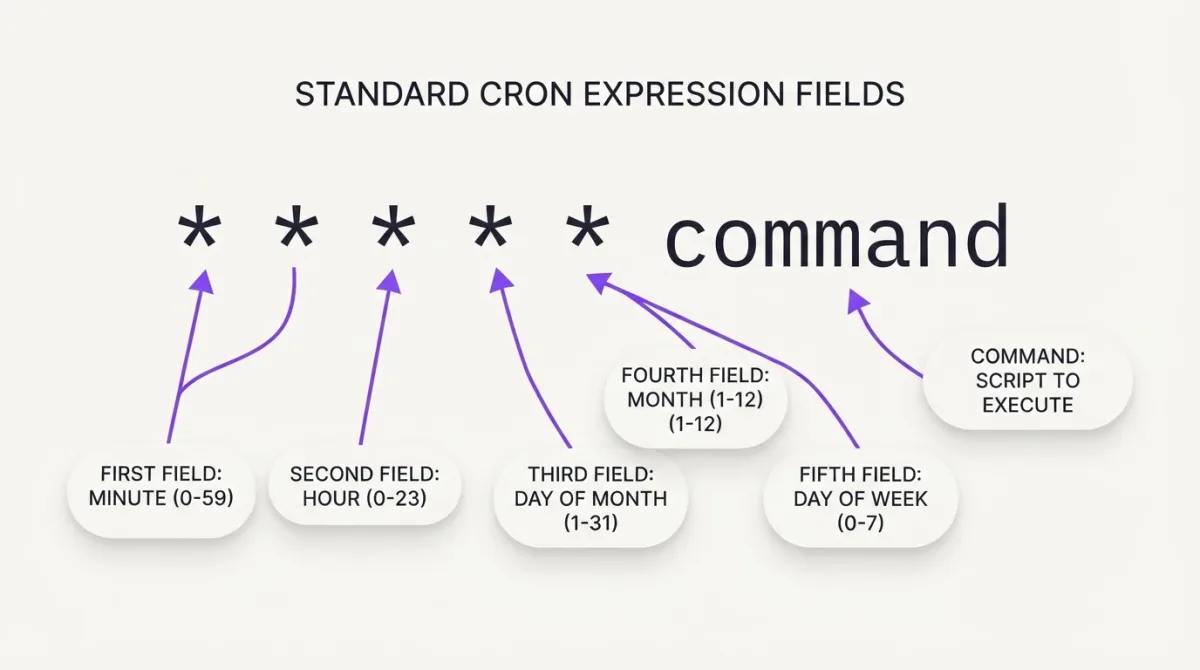
That's it. Five fields. The trick is remembering the order, because getting minute and hour mixed up turns "once a day at 2 AM" into "once an hour at the second minute." I've done that. The job ran 24 times instead of once, and I only noticed because the log file grew suspiciously fast.
| Field | Allowed values | Special characters |
|---|---|---|
| Minute | 0-59 | * , - / |
| Hour | 0-23 | * , - / |
| Day of month | 1-31 | * , - / |
| Month | 1-12 | * , - / |
| Day of week | 0-7 (0 and 7 are Sunday) | * , - / |
Months start at 1, not 0. Days of the week start at 0 (Sunday). Both 0 and 7 mean Sunday on most systems, but I stick with 0 out of habit. Some implementations also accept three-letter names like MON, JAN, but I've found numeric values more portable across platforms.
Cron special characters
Four characters cover almost everything. I use the asterisk and slash constantly, commas occasionally, and hyphens when I need business-hours schedules.
Asterisk (*) means "every"
An asterisk matches all possible values for that field. * * * * * means every minute of every hour of every day. You almost never want all five fields to be asterisks in production unless you're doing something very lightweight, like a dead man's switch heartbeat.
Comma (,) means "and"
Use commas to list specific values. 0,30 * * * * means at minute 0 and minute 30 of every hour. I use this for jobs that need to run at irregular times that don't fit a clean interval, like 0 9,13,18 * * * for a report that goes out three times a day.
Hyphen (-) means "through"
Defines a range. 9-17 in the hour field means hours 9 through 17, inclusive. This is how you build weekday or business-hours schedules: 0 9 * * 1-5 runs at 9 AM Monday through Friday.
Slash (/) means "every nth"
Steps through values. */5 in the minute field means every 5 minutes: 0, 5, 10, 15, and so on. You can combine it with a range: 10-30/5 fires at minutes 10, 15, 20, 25, and 30.
One thing that tripped me up early: */7 in the minute field doesn't give you even intervals. It fires at 0, 7, 14, 21, 28, 35, 42, 49, 56 and then jumps back to 0 at the next hour. That last gap is only 4 minutes instead of 7. The step resets at the boundary of each field, so the math only works cleanly with divisors of 60: 2, 3, 4, 5, 6, 10, 12, 15, 20, 30.
20 cron expressions you'll actually use
I'm not going to list 50 expressions for completeness. These are the ones I reach for in real projects, grouped by how often the job runs.
Every few minutes
| Expression | What it does | When I use it |
|---|---|---|
* * * * * | Every minute | Laravel schedule:run, scheduler heartbeats |
*/5 * * * * | Every 5 minutes | Queue health checks, lightweight sync jobs |
*/10 * * * * | Every 10 minutes | Moderate-frequency polling, status updates |
*/15 * * * * | Every 15 minutes | API data pulls, cache warming |
*/30 * * * * | Every 30 minutes | Report aggregation, exchange rate updates |
Hourly
| Expression | What it does | When I use it |
|---|---|---|
0 * * * * | Every hour at :00 | Cleanup jobs, log rotation |
0 */2 * * * | Every 2 hours | Screenshot cache cleanup, data sync |
0 */4 * * * | Every 4 hours | Heavier processing, batch imports |
0 */6 * * * | Every 6 hours | External API full sync |
Daily
| Expression | What it does | When I use it |
|---|---|---|
0 0 * * * | Midnight (see full guide) | Log cleanup, expired session purge |
0 2 * * * | 2:00 AM | Database backups (low traffic window) |
0 9 * * * | 9:00 AM | Daily reports, morning notifications |
30 4 * * * | 4:30 AM | SSL certificate check |
Weekday and weekend
| Expression | What it does | When I use it |
|---|---|---|
0 9 * * 1-5 | Weekdays at 9 AM | Business reports, Slack notifications |
*/15 9-17 * * 1-5 | Every 15 min, 9-5, Mon-Fri | Business-hours monitoring |
0 10 * * 6 | Saturday at 10 AM | Weekly analytics digest |
0 0 * * 0 | Sunday at midnight | Weekly maintenance, full cleanup |
Monthly and beyond
| Expression | What it does | When I use it |
|---|---|---|
0 0 1 * * | First day of month at midnight | Monthly billing, invoice generation |
0 6 15 * * | 15th of month at 6 AM | Mid-month reports |
0 0 1 1 * | January 1st at midnight | Annual cleanup, year-end jobs |
0 3 1 */3 * | Every 3 months on the 1st at 3 AM | Quarterly data archival |
Shortcut strings
Most cron implementations support readable shortcuts. I don't use them in crontab files because they're less portable, but they're good to know when you see them in documentation or someone else's config.
| Shortcut | Equivalent | Meaning |
|---|---|---|
@reboot | (runs once at startup) | After system boot |
@yearly | 0 0 1 1 * | Once a year, Jan 1st midnight |
@monthly | 0 0 1 * * | Once a month, 1st at midnight |
@weekly | 0 0 * * 0 | Once a week, Sunday midnight |
@daily | 0 0 * * * | Once a day at midnight |
@hourly | 0 * * * * | Once an hour at :00 |
@reboot is the odd one out. It doesn't have a five-field equivalent because it's event-based, not time-based. I use it for starting queue workers and other daemons that should come back up after a server restart.
The day-of-month + day-of-week trap
This one has bitten me and probably half the people reading this. In standard cron (Vixie cron, which is what runs on most Linux systems), if you set both the day-of-month and day-of-week fields, they combine with OR, not AND.
# You might think: "Run on the 15th, but only if it's a Friday"
# What actually happens: "Run on the 15th AND on every Friday"
0 0 15 * 5
This expression runs at midnight on every 15th of the month and on every Friday. Not "the 15th when it falls on Friday." There's no way to express "15th only if Friday" in standard cron syntax alone. You'd need a wrapper script:
#!/bin/bash
# Run only when it's a Friday AND the date is between 13th-17th
DOW=$(date +%u) # 5 = Friday
DOM=$(date +%d) # day of month

if [ "$DOW" -eq 5 ] && [ "$DOM" -ge 13 ] && [ "$DOM" -le 17 ]; then
  /usr/local/bin/your-script.sh
fi
Then schedule it to run every day and let the script handle the logic:
0 0 * * * /usr/local/bin/friday-near-15th.shI know it's clunky. But it's better than the alternative of your job running on every Friday and every 15th and you wondering why billing ran four extra times last month.
"Last day of month" doesn't exist in standard cron
People search for this all the time. There's no standard syntax for "run on the last day of every month" because months have different lengths and standard cron has no L modifier. Quartz and AWS EventBridge support L, but Linux crontab doesn't.
The workaround is to check the date inside the script:
#!/bin/bash
# Run only on the last day of the month
TOMORROW=$(date -d "tomorrow" +%d)
if [ "$TOMORROW" = "01" ]; then
  /usr/local/bin/monthly-close.sh
fi
Schedule it to run every day, and the script itself decides whether today is the last day.
Day-of-week numbering varies by platform
This one is a quiet source of bugs when you copy cron expressions between systems. In Linux crontab, Sunday is 0 (and also 7 on most implementations). In AWS EventBridge, Sunday is 1. In Quartz, Sunday is 1 too. So 5 means Friday on Linux but Thursday on AWS.
I always double-check the day-of-week mapping when moving cron expressions to a different platform. It's the kind of mistake you don't catch until someone asks why the Monday report came out on Tuesday.
Platform differences that will waste your time
I mostly work with Linux crontab and Laravel's scheduler. But I've also configured cron in Kubernetes, GitHub Actions, and AWS at various points. They all claim to use "cron syntax" and then quietly disagree on the details.
Standard Linux crontab (Vixie cron)
Five fields. Supports *, ,, -, /. Day of week 0-7 (both 0 and 7 = Sunday). Some versions accept JAN-DEC and MON-SUN. This is the baseline that everything else diverges from.
Kubernetes CronJobs
Same five-field format. Runs in UTC unless you set the timeZone field (available since Kubernetes 1.27). No @reboot or other shortcuts. I got burned by timezone here: my "2 AM backup" was running at 2 AM UTC, which was 5 AM local time on my Helsinki server. The job overlapped with peak traffic because I forgot to convert.
apiVersion: batch/v1
kind: CronJob
spec:
  schedule: "0 2 * * *"
  timeZone: "Europe/Helsinki"
  jobTemplate:
    spec:
      containers:
      - name: backup
        command: ["/bin/sh", "-c", "backup.sh && curl -fsS https://your-monitoring.com/ping/uuid"]
Notice the heartbeat ping at the end. Kubernetes CronJobs can fail silently just like regular cron, especially if the pod crashes during execution. Adding a curl heartbeat to the command chain catches that.
GitHub Actions
Five fields, UTC only (you can't change the timezone). Uses standard syntax but has a minimum interval of 5 minutes, and GitHub explicitly warns that schedules can be delayed during high-load periods. I wouldn't rely on GitHub Actions cron for anything time-sensitive.
on:
  schedule:
    - cron: '0 9 * * 1-5'  # Weekdays at 9 AM UTC
AWS EventBridge (CloudWatch Events)
Six fields (adds year) and uses 1-7 for day of week (1 = Sunday) instead of 0-6. Also supports L (last), W (weekday), and # (nth occurrence). The day-of-week numbering is the most common source of off-by-one bugs when migrating from Linux crontab.
Quartz (Java)
Six or seven fields (adds seconds at the start, optional year at the end). Uses ? for "no specific value" in either day-of-month or day-of-week (you must use ? in one of them). Supports L, W, #. If you paste a standard Linux cron expression into a Quartz-based system, it won't work because Quartz expects that seconds field.
Laravel scheduler
Laravel wraps cron scheduling in PHP methods, so you rarely write raw expressions. But when you need to, ->cron('0 2 * * *') accepts standard five-field syntax. The scheduler itself runs via a single * * * * * crontab entry. I covered the full setup in monitoring Laravel scheduled commands.
Cloud cron services
If you don't want to manage crontab on a server at all, cloud cron services let you schedule HTTP calls or scripts from a web dashboard. They handle retries, timezone conversion, and monitoring in one place. Worth considering if you're running jobs that just hit a URL endpoint.
Timezone gotchas
Cron runs in the system timezone by default. On most servers I set up (Hetzner, Ubuntu), the timezone is UTC unless I changed it. This is fine for backend jobs, but it means "daily at 9 AM" is 9 AM UTC, not 9 AM in your local time.
Check your server's timezone before writing any schedule:
timedatectlIf you see Time zone: Etc/UTC, your cron jobs run in UTC. To schedule something at 9 AM Kyiv time (UTC+2, or UTC+3 during summer), you'd need to account for the offset manually. I schedule all my backend jobs in UTC and just do the math. I stopped doing that after a job on one server and a UTC-timed job on another both tried to rotate the same log at different hours.
Daylight saving time makes this worse. A job scheduled at 2:30 AM will skip when clocks jump forward (that time doesn't exist) and may run twice when clocks fall back (that time exists twice). For jobs where this matters, schedule them at a time that's outside the DST transition window. Or run everything in UTC and avoid the problem entirely.
Mistakes I've debugged in production
These are real scheduling errors I've made or fixed on servers I manage. Every one of them was caused by a simple syntax mistake that looked correct at a glance.
Running every minute instead of every hour
# Wrong: runs every minute at every hour
* 2 * * * /usr/local/bin/backup.sh

# Right: runs once at 2:00 AM
0 2 * * * /usr/local/bin/backup.sh
The asterisk in the minute field means "every minute." So * 2 * * * runs at 2:00, 2:01, 2:02, all the way to 2:59. Sixty executions instead of one. I caught this because my backup script was creating 60 dump files every night and filling up the disk.
Forgetting that hour is 0-23, not 1-24
# Wrong: hour 24 doesn't exist, some systems ignore this silently
0 24 * * * /usr/local/bin/midnight-job.sh

# Right: midnight is hour 0
0 0 * * * /usr/local/bin/midnight-job.sh
Step values that don't divide evenly
# Looks like "every 7 hours" but actually gaps are uneven
0 */7 * * * /usr/local/bin/sync.sh
# Runs at: 0:00, 7:00, 14:00, 21:00, then 0:00 again (3-hour gap)

# Better: just list the hours you want
0 0,6,12,18 * * * /usr/local/bin/sync.sh
*/7 in the hour field steps through 0, 7, 14, 21, then resets to 0 at the next day. That last interval is only 3 hours. The same issue happens with */7 in minutes or */11 or any step that doesn't divide evenly into the field's range.
Output flooding cron email
# This sends all output to root's mail, which nobody reads
0 2 * * * /usr/local/bin/backup.sh

# Better: redirect output to a log, or to /dev/null if you have monitoring
0 2 * * * /usr/local/bin/backup.sh >> /var/log/backup.log 2>&1

# Best: log output AND send heartbeat
0 2 * * * /usr/local/bin/backup.sh >> /var/log/backup.log 2>&1 && curl -fsS --retry 3 --max-time 10 https://watchcron.com/ping/your-uuid > /dev/null
By default, cron tries to email the command's stdout and stderr to the crontab owner. On most servers, there's no MTA configured, so this output just accumulates in /var/mail/root. I've seen that file grow to several gigabytes on neglected servers. Either redirect output to a log file or to /dev/null if you have proper heartbeat monitoring in place.
Overlapping runs when jobs take too long
If a job scheduled every 5 minutes takes 8 minutes, the next instance starts before the first one finishes. Two copies of the same script writing to the same file or database at once. Use flock to prevent this:
*/5 * * * * flock -n /tmp/sync.lock /usr/local/bin/sync.shThe -n flag makes flock exit immediately if the lock is held, so the second instance just skips instead of queuing up.
Environment variables in crontab
Cron runs with a minimal environment. Your $PATH is usually just /usr/bin:/bin, and most of the environment variables you're used to in an interactive shell aren't set. This catches people when they write a cron entry like:
# Might fail because node isn't in cron's PATH
0 * * * * node /app/sync.js
Use full paths instead:
0 * * * * /usr/local/bin/node /app/sync.jsOr set variables at the top of your crontab:
PATH=/usr/local/bin:/usr/bin:/bin
SHELL=/bin/bash
MAILTO=""

0 2 * * * /usr/local/bin/backup.sh >> /var/log/backup.log 2>&1
MAILTO="" disables the email notification entirely.
Managing crontab
Quick overview of the commands you'll actually type. There are two types of crontab files: per-user (managed via crontab command) and system-wide (/etc/crontab, which has an extra "user" field between the schedule and the command).
# Edit your crontab (opens in $EDITOR)
crontab -e

# List current entries
crontab -l

# Remove your entire crontab — careful, no confirmation prompt
crontab -r

# Edit another user's crontab (requires root)
sudo crontab -u www-data -e
A word about crontab -r: it deletes every entry without asking "are you sure?" I've accidentally run it instead of crontab -e (r is right next to e on the keyboard) and lost a crontab with 15 entries. Now I keep a backup of my crontab in version control. A simple crontab -l > ~/crontab-backup.txt before editing takes three seconds and can save an hour of reconstruction.
The system-wide crontab at /etc/crontab and files in /etc/cron.d/ use a slightly different format, with a user field after the time fields:
# /etc/crontab format: has a user field
# minute hour day month weekday USER command
0 2 * * * root /usr/local/bin/backup.sh
If you put a user field in a per-user crontab (edited via crontab -e), cron will try to run "root" as the command. This has confused me exactly once, and that was enough.
Testing before deploying
I have a rule: never add a cron expression to production without verifying the next few run times first. The cron expression builder shows you the next scheduled runs so you can confirm the schedule matches what you expect.
If you're on the command line, you can also do a quick check with crontab -l to list current entries. And if you're using systemd timers instead of crontab, systemctl list-timers shows upcoming execution times.
For a new cron job, my workflow looks like this:
# 1. Build the expression in the visual builder
#    https://watchcron.com/tools/cron-expression-builder

# 2. Test the command manually first
/usr/local/bin/backup.sh

# 3. Add to crontab with output logging
crontab -e
# 0 2 * * * /usr/local/bin/backup.sh >> /var/log/backup.log 2>&1 && curl -fsS --retry 3 --max-time 10 https://watchcron.com/ping/your-uuid > /dev/null

# 4. Verify it was saved
crontab -l

# 5. Check the log after the first scheduled run
tail -f /var/log/backup.log
And once the job is running, add cron job monitoring so you'll know if it stops. I wrote about the different ways cron jobs can fail and how heartbeat monitoring catches all of them.
Where to go from here
If you're setting up a new cron job, use the cron expression builder to build and validate the expression before pasting it into your crontab. It shows next run times so you can catch mistakes before they hit production.
Once the job is running, add a heartbeat so you'll know if it stops. I covered the practical setup in monitoring cron jobs with curl and a heartbeat API, and the conceptual foundation in what a dead man's switch is. For Laravel projects, the scheduler ping methods handle everything without raw curl.
I keep updating this page as I run into new edge cases.