Monday is the most popular day for weekly cron jobs. Reports, email digests, stale data cleanup, key rotation. The expression 0 0 * * 1 schedules a task for every Monday at midnight. One line, one run per week. But behind that simplicity hide a few non-obvious traps: confusion around day numbering, no built-in way to do "every other Monday," and surprising behavior when you try to target the first Monday of the month.
The expression: 0 0 * * 1
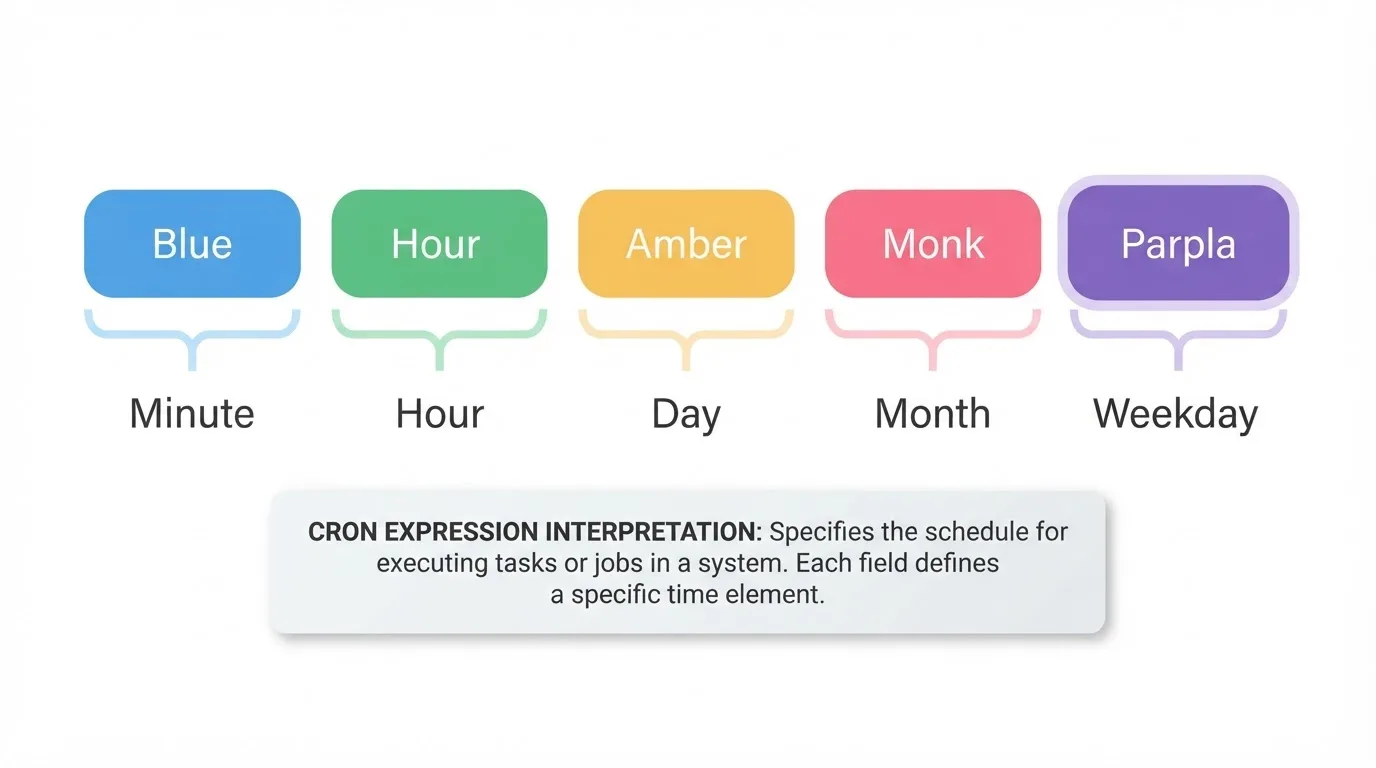
A cron expression has five fields, read left to right: minute, hour, day of month, month, and day of week. In 0 0 * * 1, the two zeros set the time to midnight (minute 0, hour 0). The stars mean "every day of every month." And the 1 at the end means Monday.
The day-of-week field uses numbers from 0 to 7, where 0 and 7 both mean Sunday, 1 is Monday, 2 is Tuesday, and so on through 6 for Saturday. You don't need to memorize this. Most modern cron implementations also accept three-letter names: MON, TUE, WED, THU, FRI, SAT, SUN. So 0 0 * * MON does the same thing as 0 0 * * 1, just without the ambiguity.
One thing worth knowing: if you use a Java-based scheduler like Quartz (common in Spring Boot applications), the numbering is different. Sunday is 1, Monday is 2. Paste a standard cron expression into Quartz without adjusting, and your Monday job runs on Tuesday. We've seen this exact mixup on projects migrating between systems. When in doubt, validate the expression in your target system before deploying.
Picking a time
Midnight sounds clean, but it's a crowded slot. Log rotation, database backups, analytics jobs — half the infrastructure world schedules things at 0 0. If your Monday task touches the same database as those other jobs, they'll compete for resources at the same moment.
Pick a time that makes sense for the task:
0 6 * * 1    # 6:00 AM — before business hours
0 9 * * 1    # 9:00 AM — start of work
30 14 * * 1  # 2:30 PM — mid-afternoon
0 22 * * 1   # 10:00 PM — end of day
Those # marks are comments — cron ignores everything after them. For a weekly email digest or report, 9 AM Monday makes more sense than midnight. The report lands in inboxes when people actually open them. For a cleanup script, late Sunday night (0 23 * * 0) clears the decks before Monday starts.
Think about who reads the output, not just when the server is free.
Adding it to crontab
Crontab is the file where your server stores all cron schedules. Open it for editing:
crontab -eAdd a line with the full path to every command. Cron runs in a minimal environment — it doesn't know where your programs are installed unless you spell it out:
0 9 * * MON /usr/bin/python3 /opt/scripts/weekly-report.py >> /var/log/weekly-report.log 2>&1That line breaks down into two parts. First, the schedule (0 9 * * MON — every Monday at 9 AM). Then, the command: run weekly-report.py using Python 3, and send all output (both normal messages and errors) into a log file. The >> means "append to the file" rather than overwrite it, so you keep a history of every run.
Check that the entry saved correctly:
crontab -lWithout the >> /var/log/... 2>&1 part, cron tries to email the output through the server's mail system. On most modern servers, mail isn't configured, so the output just vanishes. You'll wonder why the script "isn't working" when it's actually running fine — you just can't see what it printed. A cron cheat sheet helps keep this syntax straight for less frequent edits.
The every-other-Monday problem
Sooner or later, someone will ask for a biweekly schedule. "Run this every other Monday." And you'll look for a way to put */2 in the day-of-week field, the same way */2 in the hour field means every 2 hours.
It doesn't work that way. Standard cron has no concept of "every second week." The day-of-week field repeats every seven days, period. No fortnight counter, no week-number tracking.
Cleanest workaround: schedule the job every Monday and let a wrapper script decide whether to actually run it.
#!/bin/bash
# Run only on even-numbered weeks (ISO week number)
WEEK=$(date +%V)
if (( WEEK % 2 != 0 )); then
    exit 0
fi

# Actual work below
/opt/scripts/biweekly-task.sh
Save this as /opt/scripts/biweekly-wrapper.sh, make it executable with chmod +x, and point crontab at it:
0 9 * * MON /opt/scripts/biweekly-wrapper.sh >> /var/log/biweekly.log 2>&1Here's what happens: the script grabs the current ISO week number. Odd week? Exit immediately, do nothing. Even week? Run the real task. Swap != 0 to == 0 to flip which Mondays it runs on.
Fair warning: ISO week numbering can shift at year boundaries. Week 1 of a new year might start on a different day than you expect. For most use cases this doesn't matter, but if your biweekly cadence absolutely cannot skip or double up at the new year, consider tracking the last run date in a file instead of relying on week numbers.
First Monday of the month
Another request that looks simple and isn't. You might try 0 9 1-7 * 1 — day of month 1 through 7, day of week Monday. Logical, right? Run on days that are both in the first seven days and also a Monday.
Except cron doesn't read it that way. When both day-of-month and day-of-week contain specific values (not wildcards), cron fires on days matching either condition. So this runs on every Monday plus the first seven days of every month, regardless of what day those fall on. Instead of one run per month, you get 10-12. We've debugged this one more than once for users who couldn't figure out why their "monthly" report was arriving every few days.
Portable fix: schedule every Monday but check the date inside the command.
0 9 * * MON [ $(date +\%d) -le 7 ] && /opt/scripts/monthly-report.shThis fires every Monday. The date +\%d part checks what day of the month it is. If it's the 8th or later, the command after && never runs. Only the first Monday survives. (The backslash before %d is required because cron treats bare percent signs as newlines — a quirk that confuses everyone at least once.)
Some systems support richer syntax. Quartz-style schedulers use MON#1 to mean "the first Monday," and cloud cron services often support similar extensions. Standard Linux crontab doesn't recognize # in this context, so check what your environment supports.
Where Monday schedules go wrong
Timezone confusion. Your server runs on UTC, but your team works in New York. A 0 9 * * MON job fires at 9:00 UTC — that's 5:00 AM in New York during summer, 4:00 AM in winter. If the job sends a weekly report, the team gets it before dawn. Either adjust the hour to account for the offset, or use the timezone converter to find the right UTC hour for your local target time.
Long feedback loop. This is the biggest practical difference between a weekly job and a job that runs every 5 minutes. If your Monday job fails silently, nobody finds out until next Monday — seven full days of missing reports, stale caches, or incomplete data. Frequent jobs break and get caught quickly. Weekly ones sit broken for a week.
The * * * * 1 mistake. Writing a star in the minute field instead of zero means "every minute on Monday." That's 1,440 runs instead of one. Every Monday your script fires once per minute from midnight to midnight. The difference between 0 0 * * 1 (one run) and * * * * 1 (1,440 runs) is two characters. Always double-check before saving.
Making sure it actually fires
After saving the crontab entry, you can wait for Monday and then check the system log:
grep CRON /var/log/syslog | grep "weekly-report" | tail -5That confirms cron invoked the command. Whether it did the right thing is a separate question — check your log file for errors or unexpected output.
For a weekly job, manually checking logs every Monday isn't realistic. A heartbeat monitor automates this: your script sends a quick HTTP request to a monitoring URL after each successful run. If the request doesn't arrive within the expected window (7 days plus a short grace period), you get an alert through Slack, Telegram, email, or whichever channel makes sense for your team. WatchCron supports 10+ notification channels, so the alert reaches you wherever you are.
Related schedules
| Schedule | Expression | Runs per week |
|---|---|---|
| Every day at midnight | 0 0 * * * | 7 |
| Every Monday | 0 0 * * 1 | 1 |
| Every Monday and Thursday | 0 0 * * 1,4 | 2 |
| Every weekday (Mon–Fri) | 0 0 * * 1-5 | 5 |
| Every weekend (Sat–Sun) | 0 0 * * 0,6 | 2 |
| First day of month | 0 0 1 * * | ~0.25 |
For expressions using step values in the minute or hour fields, browse the cron expression examples library. To build and test your own, the cron expression builder shows the next five fire times before you commit anything to crontab.
When crontab isn't an option
Not every environment gives you access to crontab. Containers without a cron daemon, serverless functions, managed hosting platforms — all common cases where you can't just run crontab -e.
An external cron service handles this: you give it a URL and a schedule (0 9 * * MON), and it sends an HTTP request to your endpoint every Monday at 9 AM from its own servers. Your application receives the request and runs the task. No local cron daemon needed.
If that service also checks whether the request succeeded — retries on timeouts, alerts on error responses, tracks whether the job actually completed — you get both execution and monitoring from a single setup. WatchCron's Cloud Cron works this way, with three free jobs on the free plan.
Run and monitor your Monday cron job
Three Cloud Cron jobs and 20 monitoring checks on the free plan. No credit card.