If you need a cron job to run Monday through Friday and skip weekends, there's one small change to make. In the last field of your cron expression, replace the star (*) with 1-5. The expression 0 9 * * 1-5 runs your command at 9 AM every weekday. Saturdays and Sundays are ignored completely.
Below: how the weekday expression works, how to limit it to business hours, the MON-FRI name syntax, what cron can and can't do about holidays, and how to check that jobs actually fire on the right days. For a broader look at cron syntax, see the complete cron jobs guide.
How the weekday cron expression works
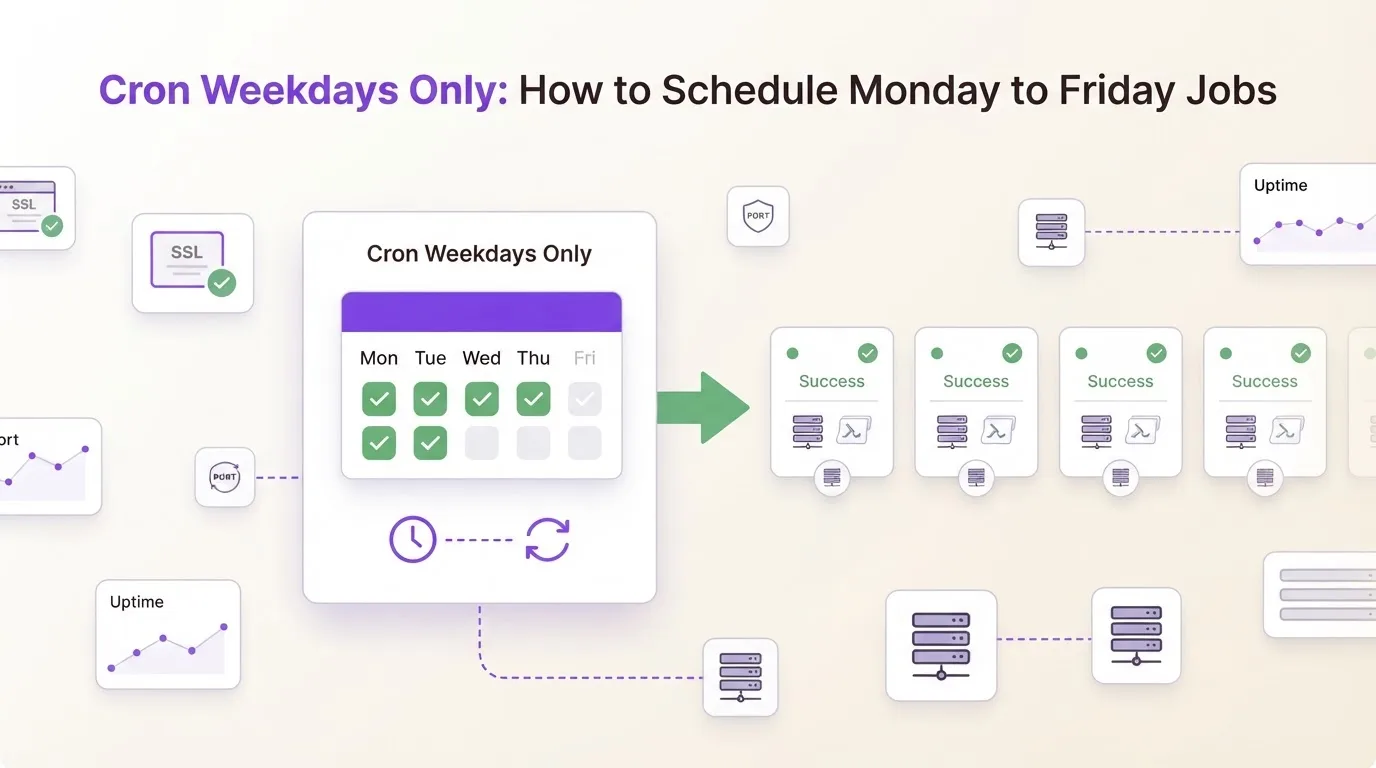
A cron expression has five fields, from left to right: minute, hour, day of month, month, and day of week. The day-of-week field is the last one. To limit the schedule to working days, set it to 1-5. In cron, Monday is 1 and Friday is 5. The range 1-5 covers all five workdays.
0 9 * * 1-5   # 9:00 AM, Monday through Friday
0 0 * * 1-5   # Midnight, weekdays only
30 8 * * 1-5  # 8:30 AM on weekdays
With this setup, the job fires five times per week, roughly 260 times per year. Weekends are skipped entirely. You can preview the next fire dates to confirm the schedule looks right before saving it.
1-5 vs MON-FRI: both work
Instead of numbers, you can use three-letter day names. MON-FRI does exactly the same thing as 1-5:
0 9 * * MON-FRI # Same as 0 9 * * 1-5Day names are case-insensitive on Linux, so mon-fri, Mon-Fri, and MON-FRI all work. On some older or minimal systems (Solaris, busybox crond), names aren't supported. If your weekday crontab schedule does nothing and shows no error, try the numeric version instead. The expression validator can tell you whether your syntax is valid.
One gotcha worth knowing: some scheduling systems outside Linux, like Quartz (used in Java apps) and AWS EventBridge, number the days differently. In those systems, 1 means Sunday, not Monday. So a Monday-Friday range in Quartz would be 2-6. If you're copying a cron expression from a Linux server to one of these platforms, double-check which day is which.
Cron during business hours only
You can combine the day-of-week range with an hour range to exclude weekends and run jobs only during work hours. For example, every 15 minutes from 9 AM to 5 PM, Monday through Friday:
*/15 9-17 * * 1-5 # Every 15 min, 9 AM to 5 PM, Mon-FriThat gives you about 33 runs per workday and zero on weekends. More patterns like this:
*/30 9-17 * * 1-5  # Every 30 min during business hours
0 9-17 * * 1-5     # Once every hour, 9 AM to 5 PM
0 9,12,17 * * 1-5  # Three times a day: morning, lunch, end of day
A detail that catches people: the hour range 9-17 includes both 9:00 and 17:00. With */15, the last run of the day is at 17:45, not 17:00. If you want the last run at 4:45 PM, use 9-16 instead. Easy to miss, and it bit us once on a reporting script that fired an hour later than the team expected.
Picking specific weekdays
You don't always need all five working days. Maybe a digest email goes out on Tuesday and Thursday, or a sync job runs Monday-Wednesday-Friday:
0 9 * * 2,4    # Tuesday and Thursday at 9 AM
0 9 * * 1,3,5  # Monday, Wednesday, Friday
0 9 * * 1-3    # Monday through Wednesday only
Numbers and ranges mix freely. 1,3-5 means Monday, Wednesday, Thursday, Friday (skipping Tuesday). The cheat sheet has more combination examples.
Weekends only (the opposite)
Sometimes you need the reverse: a heavy cleanup or database optimization that should only run when the system is quiet and nobody is working.
0 3 * * 6,0    # 3 AM on Saturday and Sunday
0 3 * * SAT,SUN  # Same thing with names
In standard cron, both 0 and 7 represent Sunday. So 6,0 and 6,7 both mean Saturday and Sunday.
What about holidays?
Cron has no concept of holidays. The range 1-5 means Monday through Friday, every single week, no matter what. Christmas falls on a Wednesday? The job runs. National holiday on a Monday? Still fires. Cron follows the calendar, not your company's HR schedule.
If your job needs to skip holidays, the solution is to let cron run on weekdays as usual, but add a check inside the script. Same idea as the "first business day" workaround from the monthly scheduling guide:
0 9 * * 1-5 /opt/scripts/check-holiday.sh && /opt/scripts/billing-run.shHow this works: check-holiday.sh looks up today's date in a list of holidays. That list can be a simple text file, a database table, or an API call. If today is a holiday, the script exits with a non-zero code. The && between the two commands means the second script (billing) only runs when the first one succeeds. So on holidays, the billing script is skipped.
A minimal check-holiday.sh looks like this:
#!/bin/bash
TODAY=$(date +\%Y-\%m-\%d)
grep -q "$TODAY" /etc/holidays.txt && exit 1
exit 0
Keep /etc/holidays.txt with one date per line (2026-12-25, 2027-01-01, and so on). We've seen teams run this setup for years with barely any maintenance. Not pretty, but reliable.
Putting it in your crontab
To add a weekday schedule, open your crontab file:
crontab -eAdd a line with the full path to your script. Cron doesn't load your shell profile, so short command names like python3 might not be found. Use the full path:
0 9 * * 1-5 /usr/bin/python3 /opt/scripts/weekday-report.py >> /var/log/weekday-report.log 2>&1The >> part saves the script's output to a log file (appending, not overwriting). The 2>&1 at the end sends error messages to the same log. Without this, cron tries to email the output, which on most servers just means it vanishes. To confirm your entry was saved:
crontab -lIf you need the same schedule on multiple servers, you can use drop-in files in /etc/cron.d/ instead. These work like a crontab but with one extra field: the username to run the command as:
# /etc/cron.d/weekday-report
0 9 * * 1-5 appuser /usr/bin/python3 /opt/scripts/weekday-report.py >> /var/log/weekday-report.log 2>&1
Mistakes that trip people up
Mixing day-of-month with day-of-week. Say you write 0 9 1-15 * 1-5, thinking it means "weekdays in the first half of the month." It doesn't. When you put specific values in both the day-of-month and day-of-week fields, cron treats them as OR, not AND. The job runs on days 1-15 plus every weekday, which is almost every day. If you need both conditions, check the day-of-month inside the script instead. The first-day-of-month guide explains this trap.
Sunday = 0 or 1? In standard Linux cron, Sunday is 0 (or 7). But in Quartz (a Java scheduling library used by many apps), Sunday is 1. If you write 1-5 in Quartz, you get Sunday through Thursday. Not what you wanted. Always check which numbering your system uses.
Timezone confusion. A "weekday 9 AM" job on a UTC server fires at 4 AM Eastern or 2 AM Pacific on the same day. Worse: "Friday 11 PM UTC" is already Saturday morning in Tokyo, so a job meant for weekdays hits a weekend for your Tokyo team. That one wasted a solid hour of debugging for us before we figured out the offset. Use the timezone converter to find the right UTC hour.
Checking that it actually fires
Weekday schedules can be hard to test. Set one up on a Friday evening and the first run won't happen until Monday. Three days of silence before you know whether it works.
grep CRON /var/log/syslog | grep "weekday-report" | tail -10That command shows whether cron tried to run your script. But nobody checks logs manually every Monday morning.
Better approach: add a heartbeat ping to the end of your cron line. After the script finishes, it sends a quick HTTP request to a monitoring URL:
0 9 * * 1-5 /opt/scripts/weekday-report.py && curl -fsS https://watchcron.com/ping/your-tokenIf the ping doesn't arrive on a weekday when it should, you get an alert right away. For weekday-only jobs, set the monitor to expect pings only Monday through Friday so it doesn't alert on weekends. WatchCron supports 10+ notification channels including Slack, Telegram, and email.
Common weekday cron schedules
| Schedule | Expression | Runs per week |
|---|---|---|
| Every weekday at 9 AM | 0 9 * * 1-5 | 5 |
| Every weekday at midnight | 0 0 * * 1-5 | 5 |
| Business hours, every 15 min | */15 9-17 * * 1-5 | ~165 |
| Weekends only at 3 AM | 0 3 * * 0,6 | 2 |
| Every Monday | 0 0 * * 1 | 1 |
| Every day | 0 0 * * * | 7 |
| 1st of every month | 0 0 1 * * | ~0.25 |
More patterns in the cron expression examples library.
When you can't edit crontab
On managed hosting, in containers without a cron daemon, or in serverless setups, you can't open a crontab file. An external scheduler solves this: you give it a URL and a schedule like 0 9 * * 1-5, and it calls your endpoint on weekdays from its own servers.
In Kubernetes, you can define a CronJob resource with the same expression. The schedule field accepts standard cron syntax, so "0 9 * * 1-5" works as-is. The cluster handles the scheduling; you just need to make sure the pod's timezone matches what you expect.
If the scheduler also checks whether your endpoint responded and retries on failure, you get both scheduling and monitoring in one setup. WatchCron's Cloud Cron works this way, with three free scheduled jobs on the free plan.
Schedule and monitor your weekday cron jobs
Three Cloud Cron jobs and 20 monitoring checks on the free plan. No credit card.