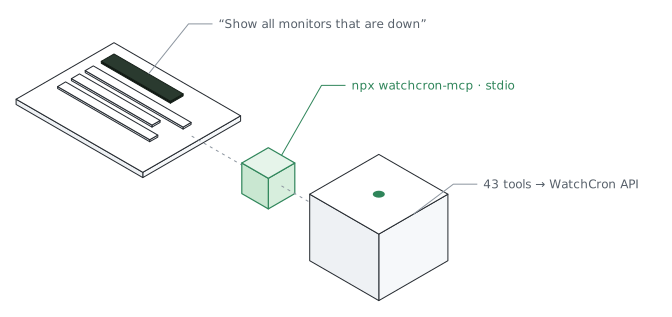
MCP stands for Model Context Protocol — an open standard that lets AI assistants call external tools. WatchCron's MCP server exposes 43 tools covering every monitor type, so your AI agent can create checks, configure uptime monitors, manage incidents, and inspect logs through plain English instead of curl commands.
01 — What happens when you connect it#
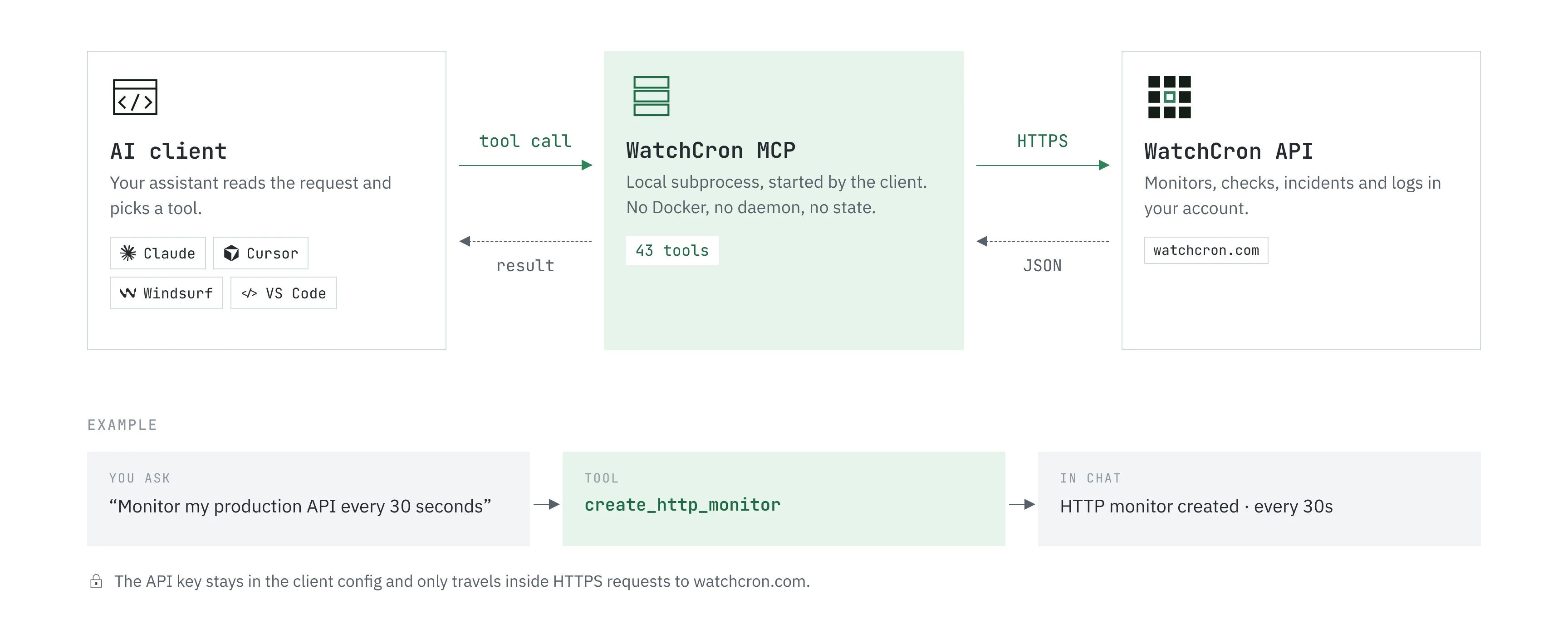
You add three lines of JSON to your AI client's config. The MCP server starts as a local subprocess — no Docker, no daemon, no port forwarding. When you ask your assistant something like "monitor my production API every 30 seconds," it picks the right tool (create_http_monitor), fills in the parameters, and calls the WatchCron REST API with your key. The result comes back formatted in the conversation.
The server runs only when the AI client invokes it. No background processes, no state, no data stored locally. Your API key stays in the config file and never leaves the machine except inside HTTPS requests to watchcron.com.
02 — 43 tools across every monitor type#
The MCP server mirrors our REST API one-to-one. Every endpoint has a corresponding tool:
- Cron job checks — create, list, update, delete, pause, view ping history (7 tools)
- HTTP monitors — full CRUD plus pause and check logs. Configure keywords, SSL monitoring, expected status codes, response time thresholds (7 tools)
- Cloud Cron — schedule HTTP requests with cron expressions, set retries, overlap prevention, custom success codes (7 tools)
- Port monitors — TCP, UDP, DNS record validation, ICMP ping (5 tools)
- Domain monitors — track expiration dates, set warning thresholds (4 tools)
- Blocklist monitors — DNSBL scanning for IP and hostname blacklisting (5 tools)
- Incidents — create, update with timeline messages, resolve, delete (5 tools)
- Status pages and notification channels — read configuration (3 tools)
Your AI agent discovers these tools automatically when the MCP server connects. No manual registration, no schema files to maintain.
03 — Setup takes under a minute#
Grab your API key from the dashboard, then add the server to your client's config. Three examples — pick the one that matches your editor.
Claude Desktop — edit claude_desktop_config.json:
{
  "mcpServers": {
    "watchcron": {
      "command": "npx",
      "args": ["watchcron-mcp"],
      "env": { "WATCHCRON_API_KEY": "YOUR_API_KEY" }
    }
  }
}
Cursor — add to .cursor/mcp.json in your project root (same JSON structure).
Claude Code — one command:
claude mcp add watchcron -- npx watchcron-mcpThe server needs Node.js 18+ and nothing else. npx handles the rest — no global install, no dependency management.
04 — What it looks like in practice#
Once connected, you work in natural language. A few real prompts:
- "Create a check for my nightly backup that runs at 2 AM UTC with a 10-minute grace period"
- "Monitor https://api.example.com/health every minute, alert if response time exceeds 3 seconds"
- "Set up a Cloud Cron to hit my WordPress wp-cron.php every 5 minutes with 2 retries"
- "Show me all monitors that are currently down"
- "Create a critical incident titled 'Database connection failures' and post an initial update"
- "What's the uptime log for my production API monitor over the last 24 hours?"
The AI figures out which tool to call, asks you for any missing details (like a URL or cron expression), and executes the request. You get the result right in the conversation — no tab-switching, no copy-pasting UUIDs.
05 — Works with any MCP-compatible client#
We've tested with Claude Desktop, Claude Code, Cursor, and Windsurf. Any client that supports the MCP stdio transport will work. The protocol is open, maintained by Anthropic, and adopted by a growing number of AI tools.
The server is published on npm as watchcron-mcp and open source on GitHub. MIT license. If your client isn't listed above, the MCP Server documentation has the generic config format.
06 — What it doesn't do#
The MCP server is a thin wrapper around our REST API. It doesn't add new capabilities beyond what the API already offers — it makes existing functionality accessible through natural language. You can't do anything through MCP that you couldn't do with curl. The difference is speed: describing what you want in a sentence versus assembling a JSON payload by hand.
The server also doesn't run persistently. It starts when your AI client opens a conversation and stops when the conversation ends. There's no webhook listener, no long-running process, no port to secure.
07 — Get started#
The MCP server works on every plan, including Free. Grab an API key from your dashboard, paste three lines of JSON into your editor config, and your AI assistant picks up the tools automatically. No setup wizard, no onboarding flow — just a key and a command.
08 — FAQFrequently asked#
No. The MCP server works with every plan, including Free. It uses the same API key and rate limits as the REST API — 100 requests per minute on Free, up to 1,000 on Business.
No. The server is stateless — it runs as a subprocess, reads the API key from your environment variable, makes HTTPS requests to watchcron.com, and returns the result. Nothing is stored locally.
Any client that implements the MCP stdio transport. We have tested with Claude Desktop, Claude Code, Cursor, and Windsurf. ChatGPT supports MCP through plugins. The config format is the same JSON structure across all clients.
Yes. The MCP server calls the same REST API. Monitors you create through MCP appear in the dashboard immediately, and changes made in the dashboard are visible to MCP tools. They share the same rate limit per API key.
Yes. The source code is on GitHub under the MIT license. You can inspect exactly what each tool does, contribute improvements, or fork it for custom behavior.