Debugging Silent Cron Job Failures: A Step-by-Step Troubleshooting Guide
Your cron jobs are failing without a trace. This guide shows you how to diagnose and fix silent failures that slip past error logs.
 Vitalii Holben
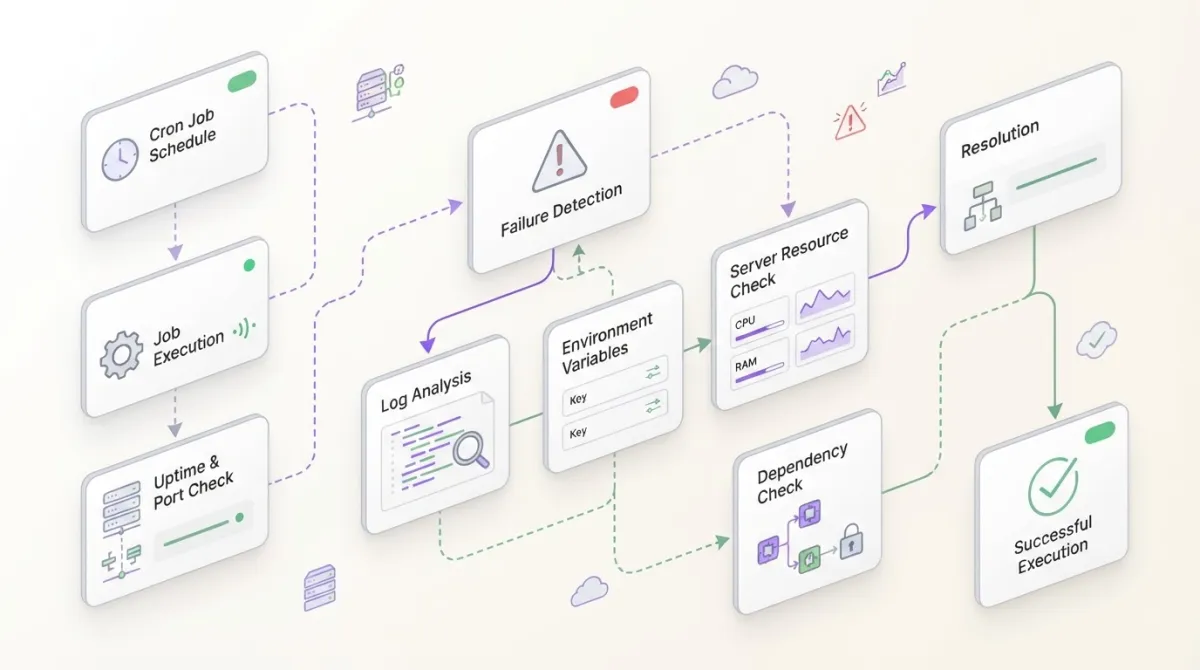
Silent cron job failures are the worst kind of bugs. Your script appears to run, returns exit code 0, but three weeks later you discover your backups are empty. This guide shows you how to systematically debug these invisible failures and prevent them from happening again.
The three types of silent failures I see most often
I've debugged hundreds of cron jobs over the years, and silent failures fall into three predictable categories. First, the script runs successfully but your business logic fails — like a backup that creates an empty file or a data sync that connects but processes zero records. Second, environment variables that exist in your shell don't exist in cron's environment, causing authentication or configuration failures that don't bubble up as errors. Third, permission issues where the script can read a file but can't write to the output directory, so it fails gracefully instead of throwing an exception.The tricky part is that all three scenarios return exit code 0, which tells cron "everything worked fine." Understanding these failure modes is the first step to building better debugging habits.Check if your cron job is actually running at all
Before diving into complex debugging, verify the obvious. I start by checking if cron is even attempting to execute my job.First, I examine the cron syntax itself:# List current cron jobs for debugging
crontab -l
# Check for syntax errors - this should show your job
crontab -l | grep "your-script-name"
# Test your cron expression at crontab.guru or with a validator
# On most systems, check syslog
sudo tail -f /var/log/syslog | grep CRON

# On CentOS/RHEL systems
sudo tail -f /var/log/cron

# On systems using systemd
sudo journalctl -u cron -f
Capture output from silent scripts (even when they don't write logs)
Silent scripts are silent because they're not telling you what went wrong. I force them to talk by capturing everything they do.Here's how I modify any cron job to capture all output:# Original cron job
0 2 * * * /path/to/your/script.sh
# Modified to capture all output
0 2 * * * /path/to/your/script.sh >> /var/log/cron-script.log 2>&1
# Even better - separate stdout and stderr with timestamps
0 2 * * * { echo "=== $(date) ==="; /path/to/your/script.sh; echo "Exit code: $?"; } >> /var/log/cron-script.log 2>&1
#!/bin/bash
# cron-wrapper.sh - Place this around any silent script

LOG_FILE="/var/log/cron-wrapper.log"
SCRIPT_PATH="/path/to/your/silent-script.py"

echo "=== Starting execution at $(date) ===" >> "$LOG_FILE"
echo "Running: $SCRIPT_PATH" >> "$LOG_FILE"
echo "Environment: USER=$USER, PWD=$PWD, PATH=$PATH" >> "$LOG_FILE"

# Run the actual script and capture its exit code
"$SCRIPT_PATH" >> "$LOG_FILE" 2>&1
EXIT_CODE=$?

echo "Completed with exit code: $EXIT_CODE at $(date)" >> "$LOG_FILE"
echo "---" >> "$LOG_FILE"

# Pass through the original exit code
exit $EXIT_CODE
Environment debugging: why your script works manually but fails in cron
The most frustrating silent failures happen when your script works perfectly in your terminal but fails mysteriously in cron. This happens because cron provides a minimal environment — no PATH, no environment variables, and a different working directory.I debug environment differences by comparing what my script sees in both contexts:#!/bin/bash
# environment-debug.sh - Run this both manually and via cron
echo "=== Environment Debug ==="
echo "Date: $(date)"
echo "User: $(whoami)"
echo "Working directory: $(pwd)"
echo "PATH: $PATH"
echo "HOME: $HOME"
echo "Shell: $SHELL"
echo ""
echo "Environment variables:"
env | sort
echo ""
echo "File permissions in current directory:"
ls -la
echo "=== End Debug ==="
#!/bin/bash
# Set PATH explicitly
export PATH="/usr/local/bin:/usr/bin:/bin"

# Set working directory
cd /path/to/your/project

# Load environment variables if needed
source /path/to/your/.env

# Now run your actual command
python3 your_script.py
Permission and file system issues that don't throw obvious errors
Permission problems often manifest as silent failures because many programming languages handle file access errors gracefully. Your script might skip operations it can't perform rather than crashing.I test file system access explicitly before running the main logic:#!/bin/bash
# permission-check.sh - Test file system access before proceeding
LOG_DIR="/var/log/myapp"
DATA_DIR="/var/data"
OUTPUT_FILE="/var/output/result.txt"
# Function to test directory access
test_directory() {
local dir=$1
local operation=$2
echo "Testing $operation access to $dir"
if [ ! -d "$dir" ]; then
echo "ERROR: Directory $dir does not exist"
return 1
fi
if [ "$operation" = "read" ] && [ ! -r "$dir" ]; then
echo "ERROR: No read access to $dir"
return 1
fi
if [ "$operation" = "write" ] && [ ! -w "$dir" ]; then
echo "ERROR: No write access to $dir"
return 1
fi
echo "✓ $operation access to $dir OK"
return 0
}
# Test all required permissions
test_directory "$LOG_DIR" "write" || exit 1
test_directory "$DATA_DIR" "read" || exit 1
# Test file creation
touch "$OUTPUT_FILE" 2>/dev/null
if [ $? -ne 0 ]; then
echo "ERROR: Cannot create output file $OUTPUT_FILE"
exit 1
fi
echo "All permission checks passed. Proceeding with main script..."
# Check which user cron thinks it is
echo "Effective user: $(id -un)"
echo "Groups: $(groups)"

# Check if running as expected user
if [ "$(id -un)" != "expected-username" ]; then
    echo "ERROR: Running as wrong user"
    exit 1
fi
Database and network connection failures in cron context
Database connections that work manually often fail silently in cron due to different timeout settings, authentication contexts, or network interface availability during cron execution.Here's how I debug database connectivity specifically in cron context: 30,
PDO::ATTR_ERRMODE => PDO::ERRMODE_EXCEPTION,
];
$pdo = new PDO($dsn, $username, $password, $options);
echo "✓ Database connection successful\n";
// Test a simple query
$stmt = $pdo->query('SELECT NOW() as current_time');
$result = $stmt->fetch(PDO::FETCH_ASSOC);
echo "✓ Query executed: " . $result['current_time'] . "\n";
} catch (PDOException $e) {
echo "❌ Database connection failed: " . $e->getMessage() . "\n";
exit(1);
}
$end_time = microtime(true);
echo "\nTotal execution time: " . round($end_time - $start_time, 2) . " seconds\n";
echo "=== End Database Debug ===\n";
?>Building a debugging wrapper script
After debugging hundreds of silent failures, I built a universal wrapper script that catches most issues automatically. This wrapper performs pre-flight checks, monitors execution, and validates results.#!/bin/bash
# universal-cron-wrapper.sh - Comprehensive debugging wrapper
SCRIPT_PATH="$1"
EXPECTED_OUTPUT_FILE="$2"
LOG_FILE="/var/log/cron-debug.log"
HEARTBEAT_URL="${MONITOR_HEARTBEAT_URL}"
if [ -z "$SCRIPT_PATH" ]; then
echo "Usage: $0 [expected-output-file]"
exit 1
fi
# Function to log with timestamp
log() {
echo "[$(date '+%Y-%m-%d %H:%M:%S')] $1" >> "$LOG_FILE"
}
# Function to send heartbeat (optional)
send_heartbeat() {
local status=$1
if [ -n "$HEARTBEAT_URL" ]; then
curl -fsS -m 10 "$HEARTBEAT_URL/$status" >/dev/null 2>&1 || true
fi
}
# Pre-flight checks
log "=== Starting wrapper for $SCRIPT_PATH ==="
log "User: $(whoami), PWD: $(pwd)"
log "Environment loaded: HOME=$HOME, PATH=$PATH"
# Check if script exists and is executable
if [ ! -f "$SCRIPT_PATH" ]; then
log "ERROR: Script $SCRIPT_PATH does not exist"
send_heartbeat "fail"
exit 1
fi
if [ ! -x "$SCRIPT_PATH" ]; then
log "ERROR: Script $SCRIPT_PATH is not executable"
send_heartbeat "fail"
exit 1
fi
# Send start heartbeat
send_heartbeat "start"
# Execute the script and capture output
log "Executing script..."
START_TIME=$(date +%s)
"$SCRIPT_PATH" >> "$LOG_FILE" 2>&1
EXIT_CODE=$?
END_TIME=$(date +%s)
DURATION=$((END_TIME - START_TIME))
log "Script completed with exit code $EXIT_CODE in ${DURATION}s"
# Validate expected output file if specified
if [ -n "$EXPECTED_OUTPUT_FILE" ]; then
if [ ! -f "$EXPECTED_OUTPUT_FILE" ]; then
log "ERROR: Expected output file $EXPECTED_OUTPUT_FILE was not created"
send_heartbeat "fail"
exit 1
fi
FILE_SIZE=$(stat -f%z "$EXPECTED_OUTPUT_FILE" 2>/dev/null || stat -c%s "$EXPECTED_OUTPUT_FILE" 2>/dev/null)
if [ "$FILE_SIZE" -eq 0 ]; then
log "WARNING: Expected output file $EXPECTED_OUTPUT_FILE is empty"
send_heartbeat "fail"
exit 1
fi
log "✓ Output file $EXPECTED_OUTPUT_FILE created successfully (${FILE_SIZE} bytes)"
fi
# Send success or failure heartbeat based on exit code
if [ $EXIT_CODE -eq 0 ]; then
log "=== Wrapper completed successfully ==="
send_heartbeat "success"
else
log "=== Wrapper failed with exit code $EXIT_CODE ==="
send_heartbeat "fail"
fi
exit $EXIT_CODE
Setting up dead man's switch monitoring to catch future silent failures
Prevention is better than debugging. I set up dead man's switch monitoring so I know about silent failures within minutes, not weeks.The concept is simple: instead of waiting for errors, I monitor for missing success signals. Here's how I implement it:#!/bin/bash
# monitored-backup.sh - Example script with dead man's switch monitoring
BACKUP_DIR="/var/backups"
MONITOR_URL="https://your-monitoring-service.com/ping/your-unique-id"
# Ping at start (optional)
curl -fsS -m 10 "$MONITOR_URL/start" >/dev/null 2>&1 || true
# Your actual backup logic
tar -czf "$BACKUP_DIR/backup-$(date +%Y%m%d).tar.gz" /important/data
# Check if backup was created and has reasonable size
BACKUP_FILE="$BACKUP_DIR/backup-$(date +%Y%m%d).tar.gz"
if [ ! -f "$BACKUP_FILE" ]; then
curl -fsS -m 10 "$MONITOR_URL/fail" >/dev/null 2>&1 || true
exit 1
fi
FILE_SIZE=$(stat -f%z "$BACKUP_FILE" 2>/dev/null || stat -c%s "$BACKUP_FILE" 2>/dev/null)
if [ "$FILE_SIZE" -lt 1000000 ]; then # Less than 1MB suggests failure
curl -fsS -m 10 "$MONITOR_URL/fail" >/dev/null 2>&1 || true
exit 1
fi
# Success ping - this is the critical part
curl -fsS -m 10 "$MONITOR_URL" >/dev/null 2>&1 || true
Prevention strategies: fail fast instead of failing silently
The best approach to silent failures is prevention. I modify my scripts to fail loudly and early rather than gracefully handling errors that should stop execution.Here are the patterns I use to make scripts fail fast:#!/bin/bash
# fail-fast-example.sh - Script that fails loudly instead of silently
# Enable strict error handling
set -euo pipefail
# Function for explicit error handling
fail() {
echo "ERROR: $1" >&2
curl -fsS -m 10 "$MONITOR_URL/fail" >/dev/null 2>&1 || true
exit 1
}
# Validate required environment variables
[ -z "${DATABASE_URL:-}" ] && fail "DATABASE_URL environment variable not set"
[ -z "${OUTPUT_DIR:-}" ] && fail "OUTPUT_DIR environment variable not set"
# Validate file system access
[ ! -d "$OUTPUT_DIR" ] && fail "Output directory $OUTPUT_DIR does not exist"
[ ! -w "$OUTPUT_DIR" ] && fail "Output directory $OUTPUT_DIR is not writable"
# Validate external dependencies
command -v pg_dump >/dev/null 2>&1 || fail "pg_dump command not found"
# Your main logic with explicit checks
echo "Starting database backup..."
pg_dump "$DATABASE_URL" > "$OUTPUT_DIR/backup.sql" || fail "pg_dump failed"
# Validate the result
[ ! -f "$OUTPUT_DIR/backup.sql" ] && fail "Backup file was not created"
[ ! -s "$OUTPUT_DIR/backup.sql" ] && fail "Backup file is empty"
# Validate backup content (basic sanity check)
if ! grep -q "PostgreSQL database dump" "$OUTPUT_DIR/backup.sql"; then
fail "Backup file does not appear to be a valid PostgreSQL dump"
fi
echo "✓ Backup completed successfully"
curl -fsS -m 10 "$MONITOR_URL" >/dev/null 2>&1 || true