WooCommerce cron jobs: why they break and how to fix them with Cloud Cron
WooCommerce relies on WP-Cron for payments, emails, and stock updates. Learn why it fails on low-traffic hours and how to replace it with a reliable external cron service.
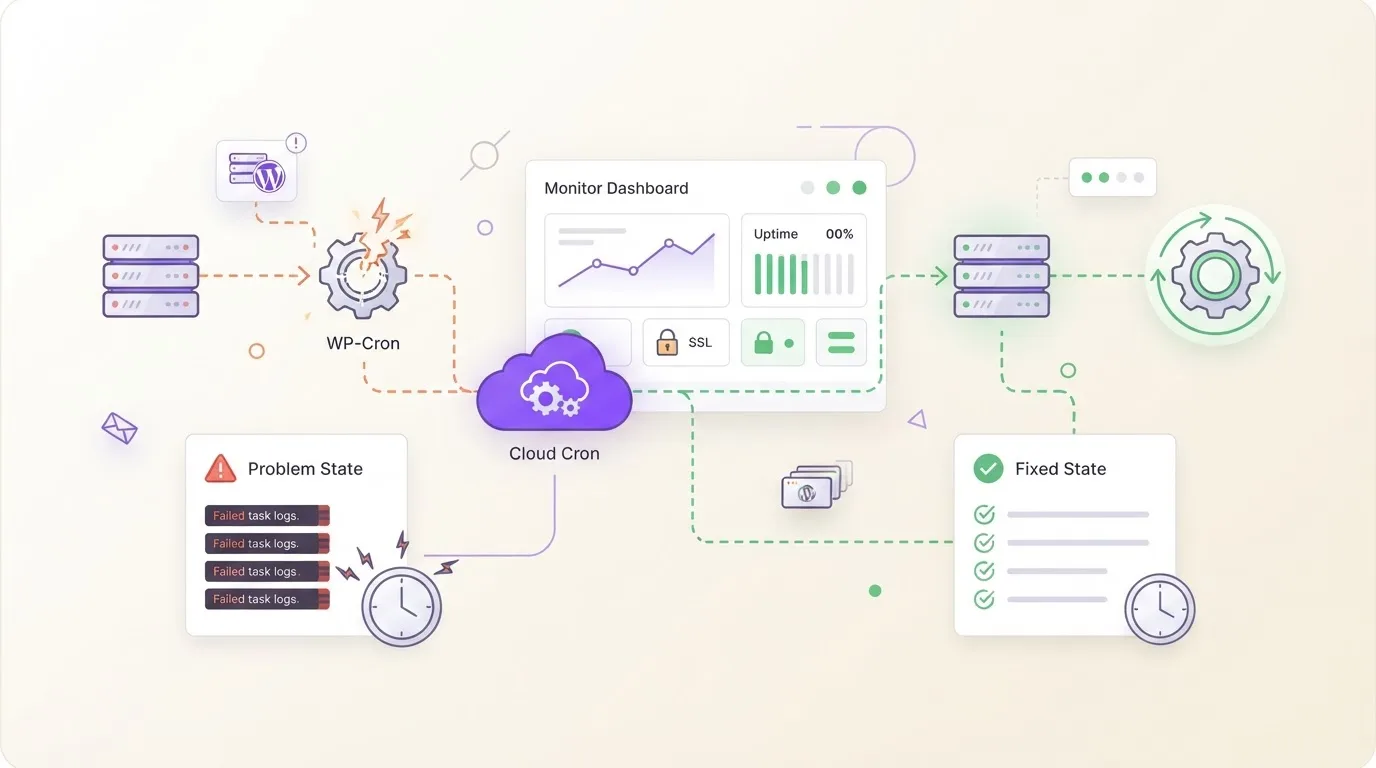
WooCommerce processes payments, sends order confirmations, renews subscriptions, and manages stock through background tasks that only run when someone visits the site. No visitors at 3 AM means no renewals at 3 AM. The payment goes through hours later, without a confirmation email, and the customer opens a support ticket before you even know something broke.
That's WP-Cron: a pseudo-scheduler that depends on traffic instead of a clock.
What WooCommerce actually schedules behind the scenes
WooCommerce runs more background tasks than most store owners realize. Two separate systems handle them, and both rely on the same wp-cron mechanism under the hood.
The first is standard WP-Cron: woocommerce_scheduled_sales fires at midnight to start and end sale prices. woocommerce_cancel_unpaid_orders clears abandoned checkouts after the hold stock timeout (60 minutes by default). woocommerce_cleanup_sessions purges expired customer sessions twice daily. There are half a dozen more for log cleanup, GDPR data removal, and analytics housekeeping.
The second system is Action Scheduler, and it handles the money-critical work. Subscription renewals, payment retries, webhook deliveries, analytics imports, and any background task from extensions like AutomateWoo or WooCommerce Bookings. Action Scheduler stores its queue in four dedicated database tables (wp_actionscheduler_actions, wp_actionscheduler_logs, wp_actionscheduler_groups, wp_actionscheduler_claims) rather than the single wp_options row WP-Cron uses. It supports retries, concurrent processing, and full execution logging.
Here's the catch: Action Scheduler still depends on WP-Cron to kick it off. The action_scheduler_run_schedule hook fires through WP-Cron, which means every Action Scheduler task, including subscription renewals, sits idle until a visitor hits the site.
Why WP-Cron fails WooCommerce stores specifically
Regular WordPress sites use cron for scheduled posts and plugin updates. Low stakes. WooCommerce uses it for revenue.
When wp-cron.php doesn't fire on time, subscription payments charge late and customers get no confirmation. Scheduled sales don't activate at midnight, so customers see yesterday's prices until someone visits. Stock held by abandoned orders never releases, blocking other buyers from purchasing.
Action Scheduler compounds the issue. A busy store with WooCommerce Subscriptions might queue 200+ pending actions overnight. When the first morning visitor arrives, all those actions try to process at once, spiking CPU and memory. On shared hosting, that often hits the PHP max_execution_time limit, leaving actions stuck in "in-progress" status indefinitely.
The WooCommerce admin makes this visible: go to WooCommerce > Status > Scheduled Actions and check the Pending tab. If you see dozens of past-due items, wp-cron.php isn't firing reliably. The admin even shows a warning: "Action Scheduler: X past-due actions found; something may be wrong."
Shared hosting adds another layer. Many hosts block the loopback HTTP request that wp-cron.php relies on. Check Tools > Site Health: if you see "Your site could not complete a loopback request," WP-Cron is effectively dead. Your store's background tasks aren't running at all.
Disable WP-Cron and point an external cron at your store
The fix is straightforward. Stop relying on visitors and trigger wp-cron.php on a schedule from outside.
Step 1: get your cron URL
Your store's cron endpoint is:
https://yourstore.com/wp-cron.php?doing_wp_cronReplace yourstore.com with your actual domain. That URL works with a simple GET request. If you need help with the cron syntax, the cron expression builder handles it.
For stores with WooCommerce Subscriptions or heavy Action Scheduler usage, there's a more targeted URL that triggers only the Action Scheduler queue runner:
https://yourstore.com/wp-admin/admin-ajax.php?action=as_async_request_queue_runnerMost stores should stick with the standard wp-cron.php URL. It processes both WP-Cron events and Action Scheduler tasks in one hit.
Step 2: set up the external cron trigger
If you have SSH access, a server crontab entry works:
*/5 * * * * curl -s https://yourstore.com/wp-cron.php?doing_wp_cron > /dev/null 2>&1But most WooCommerce store owners don't have SSH access. Managed WordPress hosts, shared hosting plans, and many WooCommerce-optimized hosts don't expose crontab. That's where an external cron service comes in: you give it a URL and a schedule, and it hits that URL reliably, regardless of traffic.
Set the interval based on what your store needs:
| Store type | Interval | Why |
|---|---|---|
| Standard store | Every 5 minutes | Covers sales, cleanup, order cancellation |
| Subscriptions active | Every 1-2 minutes | Renewal payments need near-real-time processing |
| High-volume (500+ orders/day) | Every 1 minute | Time-sensitive workflows, webhook deliveries |
Step 3: disable the built-in WP-Cron
Once your external trigger is confirmed working, add this to wp-config.php before the /* That's all, stop editing! */ line:
define('DISABLE_WP_CRON', true);The order matters here. I've seen store owners do it backwards: disable WP-Cron first, then spend a week wondering why subscription renewals stopped. Set up external cron first, verify tasks are processing, then disable the built-in one. If you disable WP-Cron without a replacement, every scheduled task stops silently. No error messages, no warnings. Tasks just pile up.
Verify it's working: check the Action Scheduler queue
After setting up external cron, go to WooCommerce > Status > Scheduled Actions. Switch to the Pending tab. Watch the list over 10-15 minutes. Pending actions should drain as the external cron fires. If the count keeps growing, something is blocking execution.
Common culprits:
- Security plugins blocking the incoming request (Wordfence, Sucuri)
- Caching plugins serving a cached response for wp-cron.php (W3 Total Cache, WP Super Cache: add wp-cron.php to your cache exclusions)
- Basic HTTP auth on staging environments (the external cron gets a 401 instead of executing)
- Cloudflare's "Under Attack" mode challenging the request
Check the Complete tab too. You should see entries with recent timestamps. If the most recent completed action is from hours ago, the trigger isn't getting through.
What about database bloat from Action Scheduler?
Busy WooCommerce stores generate thousands of Action Scheduler entries per day. Before version 4.0, completed actions stayed in the database forever. The wp_actionscheduler_actions table could grow to millions of rows on active stores. We saw one hit 4 million rows on a subscription box site: checkout queries took 8 seconds, and the admin dashboard was barely usable.
Action Scheduler 4.0 (bundled with WooCommerce 9.x) introduced auto-purge: completed actions older than 30 days and failed actions older than 90 days get cleaned up automatically. If you're on an older version, consider running cleanup manually or upgrading.
Not something an external cron service can solve directly, but worth knowing if you're troubleshooting a slow store alongside cron issues.
When to use WP-CLI instead (and why most stores don't need to)
For high-volume stores running 1000+ orders per day, WP-CLI is the gold standard for Action Scheduler processing:
wp action-scheduler run --batch-size=100 --batches=0This bypasses web server timeouts entirely and processes actions until the queue is empty. The --batches=0 flag means "don't stop until done."
But WP-CLI requires SSH access and a server crontab. For the majority of WooCommerce stores on managed hosting, an external HTTP cron hitting wp-cron.php every few minutes is simpler, doesn't require SSH, and handles everything well enough up to several hundred orders per day.
Set up WooCommerce cron monitoring with WatchCron Cloud Cron
If your store runs on managed hosting without SSH access, Cloud Cron handles both the scheduling and the monitoring. It works the same way as our WordPress-specific Cloud Cron setup, but WooCommerce stores benefit from tighter intervals. You enter your wp-cron.php URL, pick a cron expression (every 5 minutes: */5 * * * *), and Cloud Cron hits it on schedule.
The monitoring part is what matters for a store. If WooCommerce's wp-cron.php starts returning errors (500s, timeouts, blocked by a security plugin after an update), you get an alert through Slack, Telegram, email, or any of the other channels. Most store owners discover cron problems weeks after they start, when customers complain about missing emails or stale prices. With monitoring, you know within minutes.
For stores that already use a server crontab or another cron service, pairing it with heartbeat monitoring catches the same failures. The approach is different (your cron pings a monitoring URL after each successful run), but the outcome is the same: you find out when things break, not when customers tell you.
WooCommerce stores that sell subscriptions or run time-sensitive promotions can't afford to discover a broken cron job three weeks later. An external trigger with monitoring closes that gap.